
We have a Steam curator now. You should be following it. https://store.steampowered.com/curator/44994899-RPGHQ/
Chat client updated, if you have issues using chat press CTRL + SHIFT + R to force a hard refresh.

[Baldur's Better Aesthetics] Finding and editing specific NPCs

Moderator: Mod Janitor

Ignore Topic
User avatar
ArunnyE
Posts: 32
Joined: Aug 24, '23
Location: Cambodia

Geolocation

[Baldur's Better Aesthetics] Finding and editing specific NPCs

Post by ArunnyE »

I don't know if you've figured something similar out, but I've just realized an excellent way to find specific characters throughout the files, and I need to share it somewhere, and I felt like this would be the place to do it, since this mod concerns editing a wealth of specific characters. It was actually the English.pak/english.loca thing that made me think of it.

You may already be doing it or something similar, but I'll structure it like a step-by-step for anyone reading it and being interested in the process.
  • First, use Norbyte's LSlib Toolkit's "PAK / LSV Tools" to extract the relevant .pak's. This isn't always obvious, but let's focus on "random people in the game world", so we extract Gustav.pak, the .pak that contains most campaign-specific data for the main campaign, to an arbitrary location, a work folder.
  • We know that the vast majority of characters for the game are in here somewhere, in one of the _merged.lsf files. But we can't read those files yet. So we use the Norbyte's LSlib Toolkit's "LSX/LSB/LSF/LSJ Tools" to batch convert everything we have extracted. We take the folder we extracted the game into and use as both "Input" and "Output", and then we select Input Format as "LSF (binary) file" and Output Format as "LSX (XML) file". We hit convert and it will convert all LSF files in all the subdirectories into LSX files we can work with.
  • We now go to do this; we open up the start menu in Windows 10/11, we search for "Indexing Options". We pick "Modify" and add the folder that we extracted to and then converted everything in. We then go back and pick "Advanced", and then the "File Types" tab at the top. We then "Add new extension to list" in the form of "lsx" and make sure that the extension is set to "Index Properties and File Contents".
  • At this point, we give the computer time to re-index everything it needs to index. We're potentially talking about thousands of files, or tens of thousands. But just give it some time.
  • We made sure that we have a readable english.xml/english.loca for reference purposes. Just use Norbyte's to extract the English.pak, and then the "Localization" tab in the same program to convert english.loca to english.xml, and then open it up in Notepad++ or whatever you want to use.
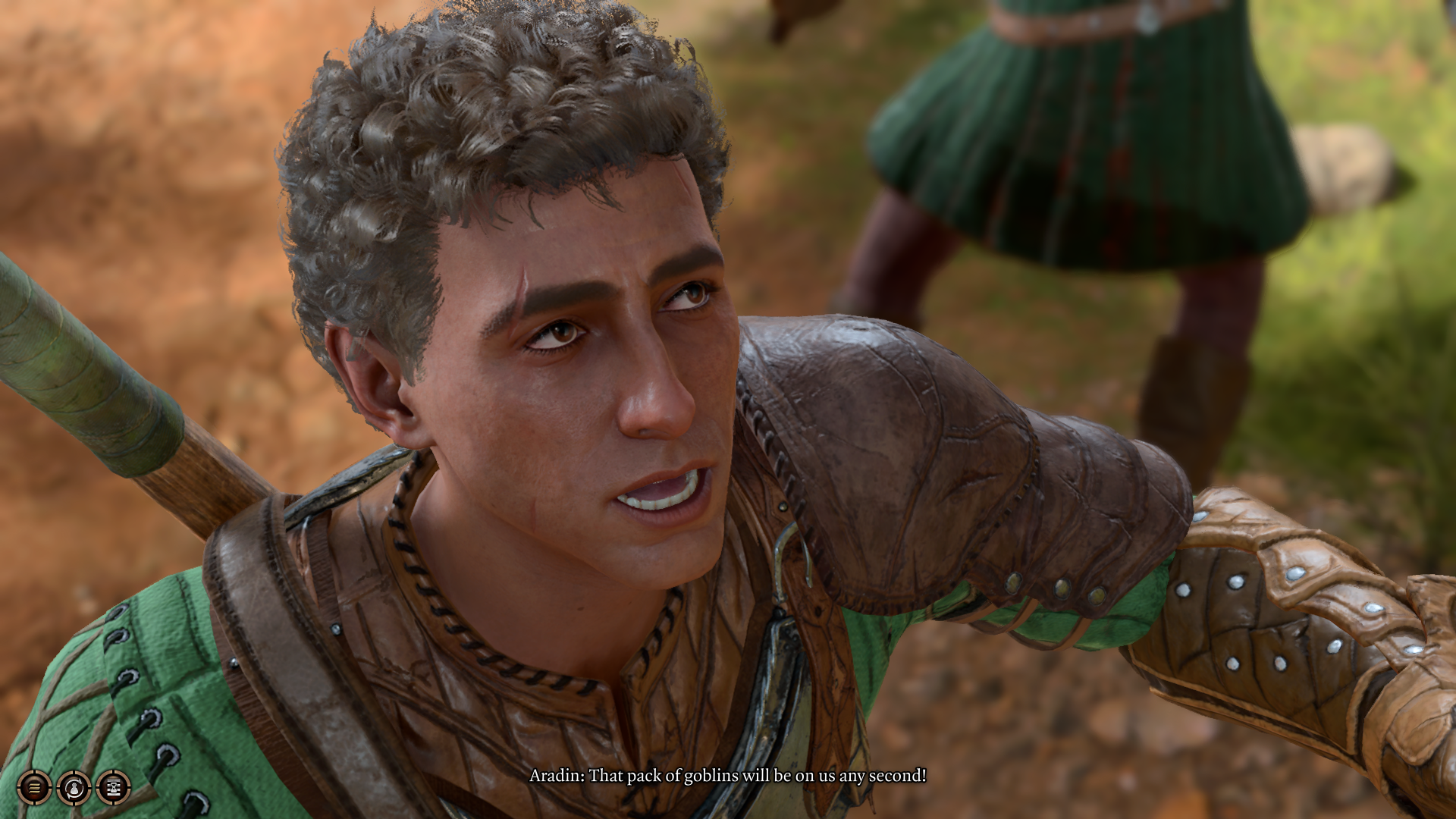
  • We find an unsuspecting NPC. For the purpose of this demonstration, I have chosen Aradin.
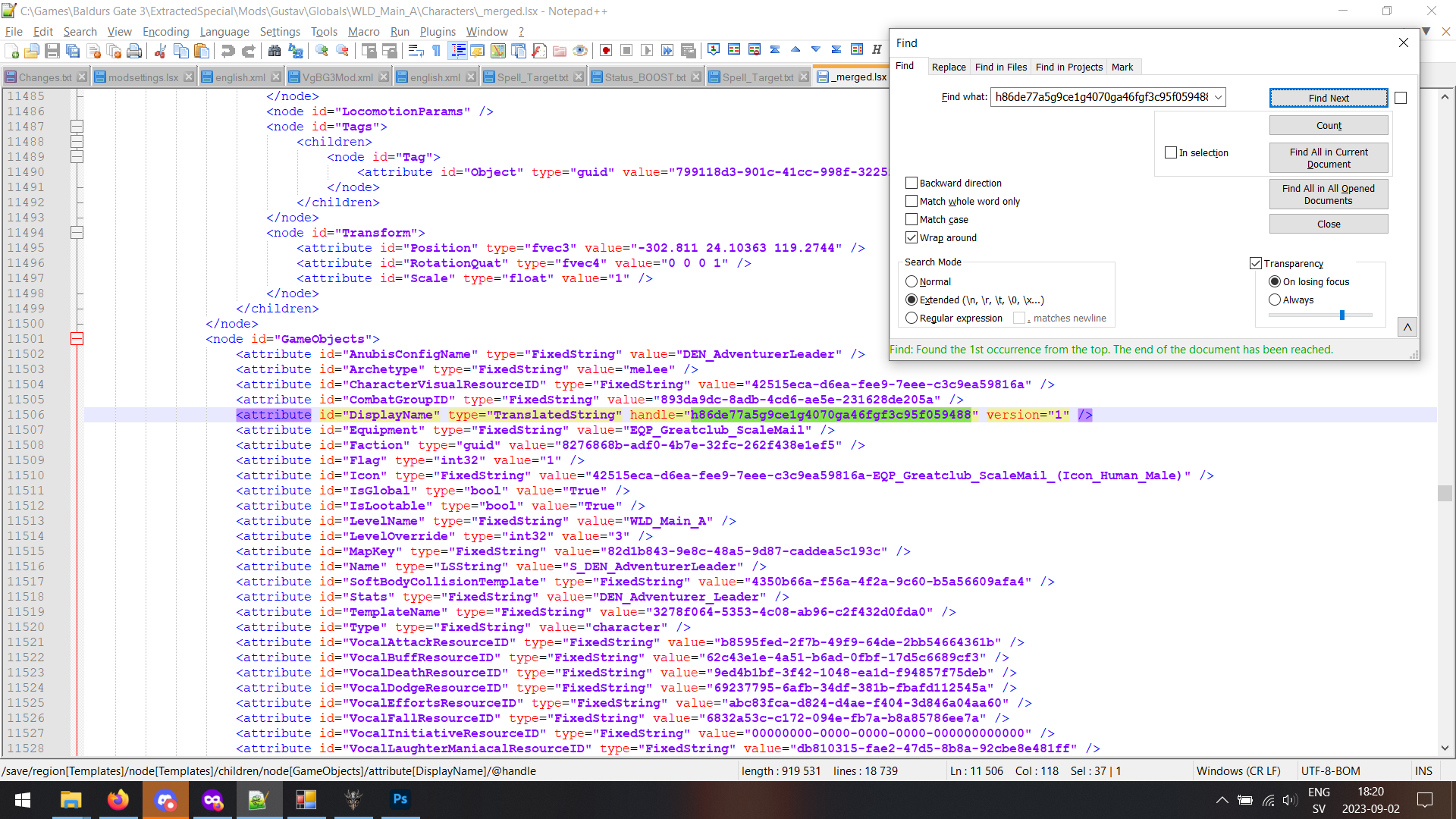
  • We check english.xml. We know that Aradin is Aradin because this is his name that shows up both in dialogue and when we hover over him in the game, and because this happens, we know that this has to be referenced by a unique ID in the game; it's just how the game functions. So we search english.xml for a string that ">Aradin<"; if we search for just "Aradin", we will get a bunch of false positives. By including the brackets, we know that that is the entire string. Voila: Aradin's contentuid is "h86de77a5g9ce1g4070ga46fgf3c95f059488", on row 116116 (for me).
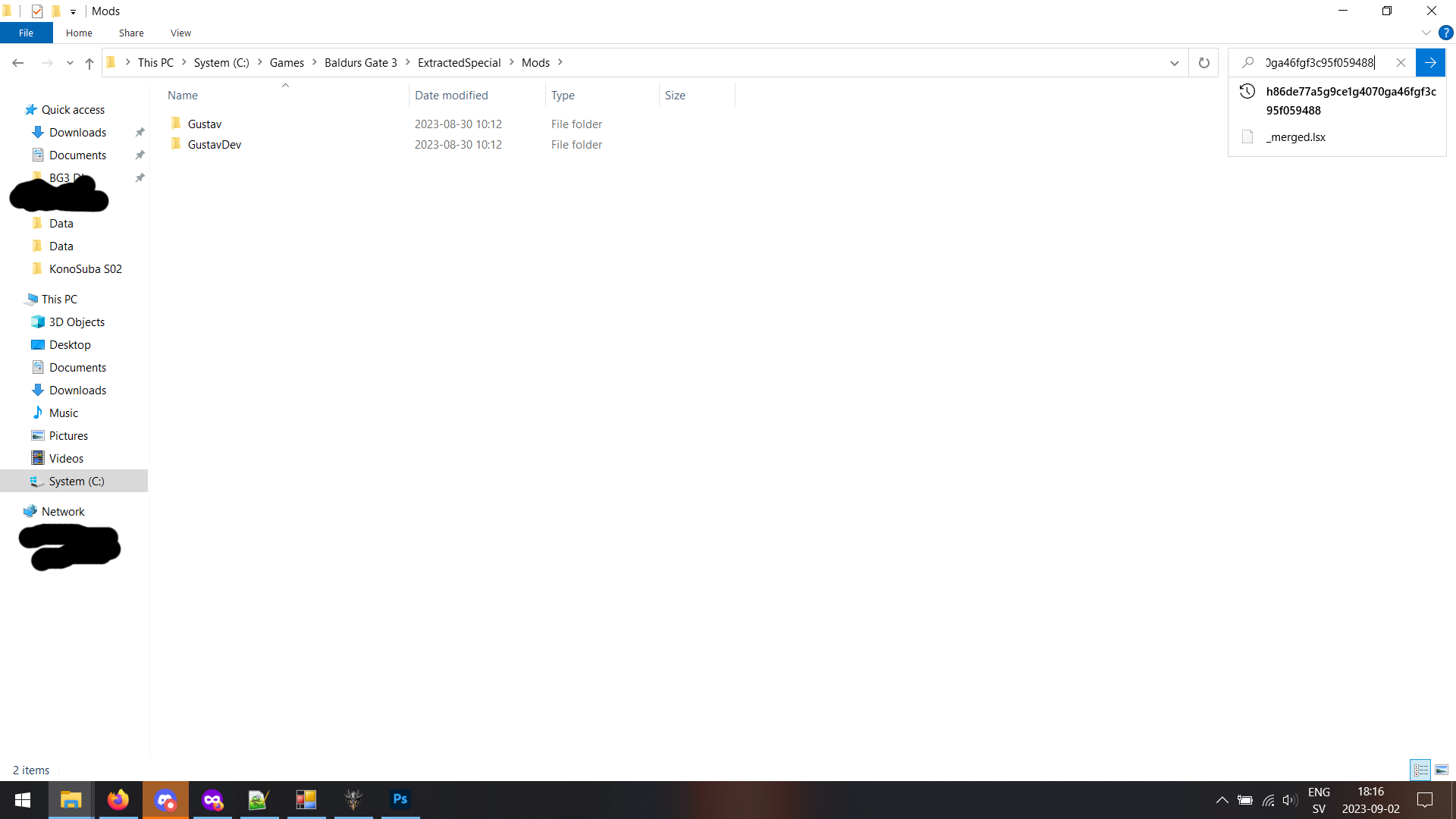
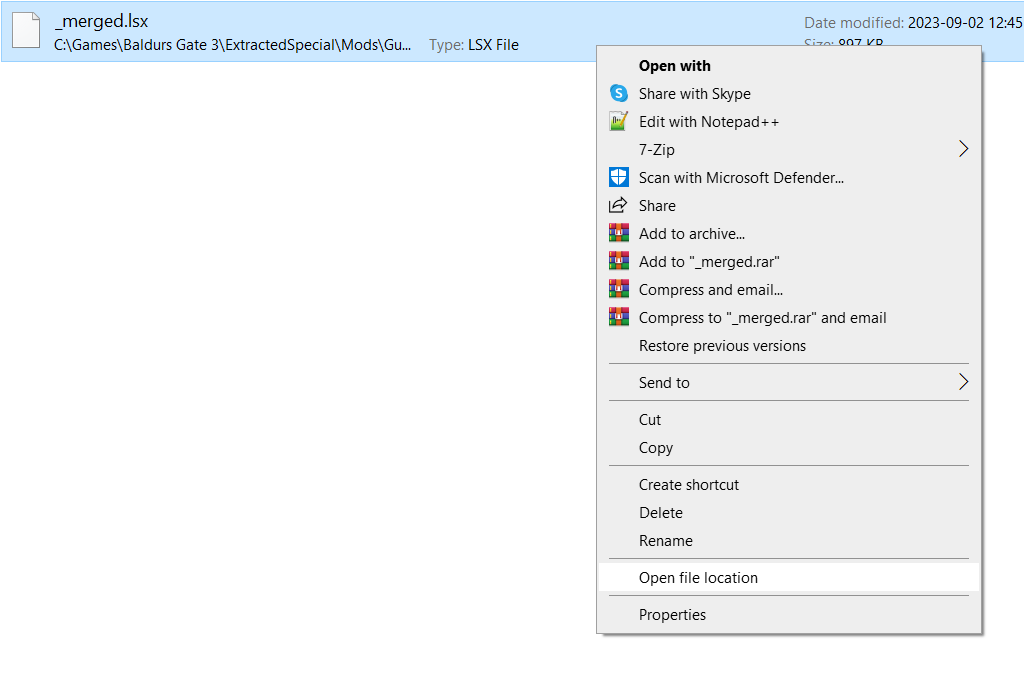
  • Knowing this, and having let Windows index all the files in the extracted folder, and reading the content of all the .lsx files, we can now search for "h86de77a5g9ce1g4070ga46fgf3c95f059488" through Explorer, then go to the file, and open it up in Notepad++ or equivalent.
  • We can then search that file specifically for "h86de77a5g9ce1g4070ga46fgf3c95f059488", again, the localization contentuid we know Aradin has.
  • And there we have it. We now know that Aradin's internal name is "DEN_AdventurerLeader" and/or "S_DEN_AdventurerLeader".
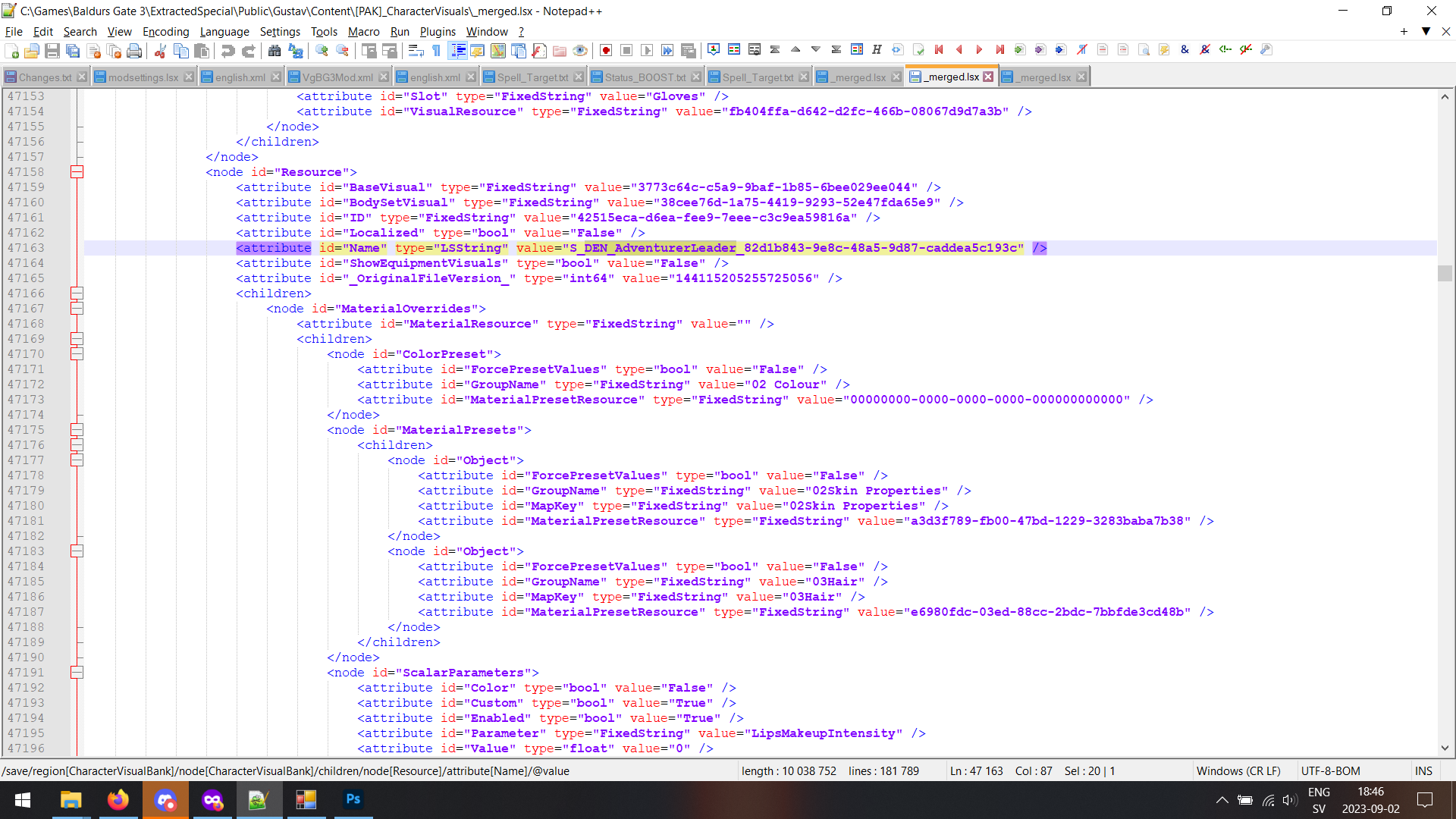
  • Knowing this, we can now search the appropriate .lsx files for this name. I forgot to include these folders for conversion and indexing earlier because I'm a stupid ******* idiot, but it's almost invariably either \Public\Gustav\Content\[PAK]_CharacterVisuals\_merged.lsf/.lsx or the exact same except \GustavDev\.
  • So we open up the \Gustav\ one, search it for DEN_AdventurerLeader, and.. boom! There's all the cosmetic settings for Aradin.
I am not entirely sure how to select specific pieces of hair or head models and so on, but overriding hair color, eye color, skin color, etc., should be trivial, even if it in some cases would require copying sections from other characters (in the case of Aradin/DEN_AdventurerLeader, it seems he doesn't have a setting for skin color or eye color, but copying those sections from somewhere else should make one override the preset settings, assuming Custom is set to True.

I have yet to see any good guides on this sort of editing or where to find stuff or how to edit certain aspects of the character visuals, which is why Wyll mod still relies on completely replacing the model for the hair he is using instead of just changing what hair he actually uses.

User avatar
SniperChris
Posts: 252
Joined: Sep 1, '23

Geolocation

Post by SniperChris »

@ArunnyE, this is exactly the method I used. With regard to replacement hair, beards, etc., I found characters whose traits I liked, tracked down those characters using the same method, and then copied the Fixed String for the Visual Resource into another Notepad++ file. So I've got a bunch of saved strings for beards, hair, hair color, eye color, skin color, heads, etc.
User avatar
ArunnyE
Posts: 32
Joined: Aug 24, '23
Location: Cambodia

Geolocation

Post by ArunnyE »

SniperChris wrote: ↑ September 2nd, 2023, 17:17
@ArunnyE, this is exactly the method I used. With regard to replacement hair, beards, etc., I found characters whose traits I liked, tracked down those characters using the same method, and then copied the Fixed String for the Visual Resource into another Notepad++ file. So I've got a bunch of saved strings for beards, hair, hair color, eye color, skin color, heads, etc.
Hah, it hadn't occurred to me to just start building a library of pieces from scratch by myself, but that's actually a great idea.

I think I'm putting this part of my own modding on ice for now, though, until Larian actually (re-)fixes mod .pak's not working properly when it comes to some many folders/files/models, because it renders mods incompatible with each other. I want to change Duke Ulder Ravengard, for example, for my Wyll mod. But if I do that, just a few lines under a single node in one of the _merged.lsf/.lsx's, it would by its very nature replace every change you're making with this mod, because I can't just change that one node, I must replace the entire file and put it as a loose file in the installation directory.

I was hoping they'd fix it in Patch 2, but I haven't been able to test it yet (I install through GOG and have slow internet). It's extra frustrating because it worked on release (My Wyll mod was originally just a regular .pak mod; I had to make it a loose \data\-mod because some patch made it so that having literally any other file in the \mods\ folder would break the new models, and then another mod broke the new .lsf's).
User avatar
SniperChris
Posts: 252
Joined: Sep 1, '23

Geolocation

Post by SniperChris »

ArunnyE wrote: ↑ September 2nd, 2023, 17:33
SniperChris wrote: ↑ September 2nd, 2023, 17:17
@ArunnyE, this is exactly the method I used. With regard to replacement hair, beards, etc., I found characters whose traits I liked, tracked down those characters using the same method, and then copied the Fixed String for the Visual Resource into another Notepad++ file. So I've got a bunch of saved strings for beards, hair, hair color, eye color, skin color, heads, etc.
Hah, it hadn't occurred to me to just start building a library of pieces from scratch by myself, but that's actually a great idea.

I think I'm putting this part of my own modding on ice for now, though, until Larian actually (re-)fixes mod .pak's not working properly when it comes to some many folders/files/models, because it renders mods incompatible with each other. I want to change Duke Ulder Ravengard, for example, for my Wyll mod. But if I do that, just a few lines under a single node in one of the _merged.lsf/.lsx's, it would by its very nature replace every change you're making with this mod, because I can't just change that one node, I must replace the entire file and put it as a loose file in the installation directory.

I was hoping they'd fix it in Patch 2, but I haven't been able to test it yet (I install through GOG and have slow internet). It's extra frustrating because it worked on release (My Wyll mod was originally just a regular .pak mod; I had to make it a loose \data\-mod because some patch made it so that having literally any other file in the \mods\ folder would break the new models, and then another mod broke the new .lsf's).
I can't take credit for that catalogue idea. I was watching Pamde4000's BG3 modding tutorial videos on YouTube and she mentioned saving the UUIDs for various things you found while searching the files.
User avatar
ArunnyE
Posts: 32
Joined: Aug 24, '23
Location: Cambodia

Geolocation

Post by ArunnyE »

I think the forum ate one of my posts. :(

I wanted to ask @SniperChris if you'd consider writing a comprehensive guide as to your process, or if you know of an existing one. I haven't seen one, and I'm a stupid ******. Once I've been able to patch my game to "Patch #2" I was thinking I'd attempt to change the hair(s) Wyll is set to use, so that I'd no longer have to replace the entire hair model, but I cannot for the life of me work out how to do it, because I can't find anything in the file I've been working in that is obviously referencing what hair he is using, even though it has all the information for skin color, hair color, and eye color.
User avatar
SniperChris
Posts: 252
Joined: Sep 1, '23

Geolocation

Post by SniperChris »

ArunnyE wrote: ↑ September 4th, 2023, 15:38
I think the forum ate one of my posts. :(

I wanted to ask @SniperChris if you'd consider writing a comprehensive guide as to your process, or if you know of an existing one. I haven't seen one, and I'm a stupid ******. Once I've been able to patch my game to "Patch #2" I was thinking I'd attempt to change the hair(s) Wyll is set to use, so that I'd no longer have to replace the entire hair model, but I cannot for the life of me work out how to do it, because I can't find anything in the file I've been working in that is obviously referencing what hair he is using, even though it has all the information for skin color, hair color, and eye color.
Luckily, I haven't been banned from the Nexus yet, so I can just copy what I wrote there:

If you would like to make your own changes, it is very simple (but it can appear daunting at first). I will lay it out for you. If you have any suggestions for changes, please make them here. You'll notice, however, that not ALL of the Dwarves have beards and not ALL of the Duergar are bald with my mod (nor are the other changes universal). I purposefully made it that way because I wanted to allow for a little variety. And besides, who is to say a Dwarf did not assimilate or move to Baldur's Gate 3, a highly cosmopolitan city, because he wanted to be a no-good beard-shaver?

Modding NPC Visuals - TL;DR:
1. Find the NPC you want to edit in the merged.lsx file under [PAK]_CharacterVisuals
2. Change the 02SkinProperties, 03Hair, and 06Eyes to different colors.
3. Change the Head, Body, Hair, Headwear, Beard, etc. entries to whatever you want.
4. Save and convert to .lsf, then replace the .lsf file from my mod.

Modding NPC Visuals - Longer Explanation:

Required Applications
I used the Modders Multi Tool, the LSLib Tool Kit, and Notepad++. If you would like to change character features, the files are located under Gustav or GustavDev with identical paths. For example: Gustav\Public\GustavDev]\Content\[PAK]_CharacterVisuals\merged.lsf.

You'll want to use the Modders Multi Tool to unpack the .pak files inside of your Baldur's Gate 3 folder. Then decompress the contents to get access to these files. It will produce tons of files named "merged.lsx" and "merged.lsf" (which are identical, except that the merged.lsf files are what the game reads and the merged.lsx files are what you can edit in Notepad++ - once you are done editing a file in merged.lsx, you can convert it to merged.lsf so it is usable by the game).

I am fairly certain (though it's been a minute since I finished Act 1) that the files in Gustav are for Act 1 and the files in GustavDev are for Act 2 & 3.

Finding Characters to Edit
To find a character you want to change, open the english.xml file under Localization (assuming you unpacked/decompressed everything like I said before) and search the ">[Character Name]<". This should bring up the UUID code for the character. Say you want to change Rath, the good druid from the Grove. Rath's UUID is "h407f09fbgfc68g4d90g8293g8b84197a4993."

You can look up Rath in two ways: First, you can search this UUID using the Modders Multi Tool's "Index Search" function. Alternatively, you can open up the corresponding file under the Levels folder for the location where the NPC is located (because characters are rarely saved with their own name - you need to learn their ID). In Rath's case, his UUID will take you to Gustav\Mods\Gustav\Levels\WLD_Main_A\Characters\merged.lsx. ("WLD" means you're in the wilderness of Act 1 and "Main" means you're in the major zone).

In this file, Ctrl+F the UUID you're trying to find (in Rath's case, "h407f09fbgfc68g4d90g8293g8b84197a4993"). This will bring you to his GameObject entry that controls where the character is. It also gives you the key for what the character looks like under "CharacterVisualResourceID." In Rath's case, this is "5dc1133a-519b-6f77-6436-a69001fa8703." It also gives you the character's name in the code under "Name." In Rath's case, this is "S_Den_DruidOpposed."

Editing the Character's Appearance
Going back to the merged.lsx files under Gustav and GustavDev, look up the CharacterVisualResourceID you found, and it will bring you to the visual data for the character you want to change.

Here, you can change Material Presets like 02SkinProperties (skin color), 03Hair (hair color) and 06Eyes (eye color). Not all characters have codes for all of the presets, but you can just insert the code from another character into the material preset section. If you want to change a given preset, just change the code that comes after "MaterialPresetResource." In Rath's case, he only has a 02SkinProperties preset. If you wanted to change his skin color, you'd change the ID here. If you wanted to give him a preset hair color or eye color, you'd copy the 03Hair or 06Eyes entry from another character and insert it after the 02SkinProperties section.

Next, if you want to give a character specific hairstyle, beard, face, clothing, etc. you scroll to the bottom of the resource for the character. Here, you'll find various entries listed as "Head," "Body," "Gloves," "Headwear," etc. If a character is bald, there will be no "Hair" entry. If a character is clean-shaven, there will be no "Beard" entry. If you want to give a character hair, copy a hair entry from another character and insert it into this section. If a character is clean-shaven (like many affected by my mod were) copy a "Beard" entry from another character and copy it here. You can also replace any entry with other entries you like.

You can also use this system to find the ID/Resource tags for beards, hair, eyes, skin, faces, etc. that you like. Identify a character you like, use the same process to find him or her, and then copy whatever entry you liked into a separate NotePad++ file, and give it a label, so you can quickly grab it in the future. I did this for the various beards/hairstyles/skin colors/eye colors/faces in the game.

Implementing the File
After you've made your changes to the merged.lsx file, save the file, then use the LSLib Toolkit to convert the merged.lsx file to a merged.lsf file. If you're already using my mod, the next step is easy. Go to your "Data" folder inside of your Baldur's Gate 3 folder. Then go to GustavDev\Content\[PAK]_CharacterVisuals or Gustav\Content\[PAK]_CharacterVisuals (depending on which merged.lsx file you were editing) and replace the merged.lsf file with the new file you've created. If, on the other hand, you haven't previously installed my mod, you will need to go to Baldur's Gate 3 folder. Locate or create a Data folder. Inside the Data folder, create the same folder architecture described above: GustavDev\Content\[PAK]_CharacterVisuals and Gustav\Content\[PAK]_CharacterVisuals. Then paste your edited merged.lsf file under the corresponding [PAK]_CharacterVisuals folder.

There's probably a better way to explain this using YouTube, but I'm no YouTuber and haven't had a google account in a dog's age.
User avatar
FloSharChosen
Posts: 62
Joined: Sep 9, '23

Geolocation

Post by FloSharChosen »

SniperChris wrote: ↑ October 8th, 2023, 17:40
AlbertHeinous wrote: ↑ October 8th, 2023, 15:42
A few notes:

Don't-call-me-Runt (Zhent guard at thieves guild entrance)
Character Visual ID:19821518-906c-a9bb-5b59-4cb850626d4c
Is missing his head
I replaced (f7800ea5-8415-4f1c-e3ae-0784d6468afaw)
With: (87fd844a-b72f-527a-41ec-df7653c8ea47)


Fist Ulthred
Character Visual ID:49a6a81d-9867-1fea-a2b3-3a9bc89c8494
Should have the same skin as (e491a48d-3570-ec40-0cf7-c2e16a720f13) as the Dev notes say, the latter is a backup dummy that dies in a cutscene.

His majesty has received two updates, first it made him a hairy cat, but after complaints they changed him back to a hairless cat. Maybe that's why he's a floating head.
Just checked the game - none of my Zhents are missing their heads in the Thieves' Guild. Do you have coordinates I could use? Also Fist Ulthred looks just like how I left him - what's wrong with his skin?

Image
Can you made a tutorial on how to do it? I'm particularly determined to fix what's left of the kara-tur elves and halfelins.
User avatar
AlbertHeinous
Posts: 29
Joined: Oct 2, '23

Geolocation

Post by AlbertHeinous »

FloSharChosen wrote: ↑ October 8th, 2023, 23:03

Can you made a tutorial on how to do it? I'm particularly determined to fix what's left of the kara-tur elves and halfelins.
SniperChris did a write-up earlier in this thread, that's how I learned it. Go check it out.


Note: if you are making an edit of this mod, the files you should edit are in the game's installation folder (after you've installed the mod) not in the unpacked folder created by the Modders multi tool.

You need LSlib and the Modders Multi Tool.
First you unpack and index the relevant files (English, Gustav)

Tip: create a save in game with the name of the NPC that you don't like, when you are near to them. Makes it easier to check the changes that you make.

In the localisation/English file you look up the name of the NPC, and copy the "Id" number associated with it.

The Modders multi tool index search wasn't really working that well for me, so I have to look the ID up manually.

In explorer search the Mods/ folder for folders named "characters"
These folders contain a .lsf file that has information about NPCs. You need to convert these files using LSlib, so you can open them in Notepad++, for example.

The parent folder of the characters folder is named after a location. Wld_main_a (wild), SCL_main_a (shadow cursed land), BGO_main_a (baldurs gate) and CTY_main_a (City) are the largest ones and most likely to have the NPC that you're looking for.

Search these files for the "Id"of the NPC, this should give you the charactervisualresourceid and the name.

Take this and use it to search the merged.lsf files located in the character visuals folders located somewhere in Public/ (you should also convert these to lsx, create a backup first)
The Gustav folder contains act1 and Gustavdev contains act 2&3.

Within the merged.lsx files you will find 02skin which determines skin color, and 03hair which is the hair color, further down you can find "hair and "head" which are the models used. Replace these with ones that you like.
Save, convert back to lsf. Done.


Once you've identified the models or Colors used that you want to replace, you can just search both merged.lsx files for every instance and replace those as well, no need to look up specific NPCs and the id's.
User avatar
FloSharChosen
Posts: 62
Joined: Sep 9, '23

Geolocation

Post by FloSharChosen »

AlbertHeinous wrote: ↑ October 9th, 2023, 05:49
FloSharChosen wrote: ↑ October 8th, 2023, 23:03

Can you made a tutorial on how to do it? I'm particularly determined to fix what's left of the kara-tur elves and halfelins.
SniperChris did a write-up earlier in this thread, that's how I learned it. Go check it out.


Note: if you are making an edit of this mod, the files you should edit are in the game's installation folder (after you've installed the mod) not in the unpacked folder created by the Modders multi tool.

You need LSlib and the Modders Multi Tool.
First you unpack and index the relevant files (English, Gustav)

Tip: create a save in game with the name of the NPC that you don't like, when you are near to them. Makes it easier to check the changes that you make.

In the localisation/English file you look up the name of the NPC, and copy the "Id" number associated with it.

The Modders multi tool index search wasn't really working that well for me, so I have to look the ID up manually.

In explorer search the Mods/ folder for folders named "characters"
These folders contain a .lsf file that has information about NPCs. You need to convert these files using LSlib, so you can open them in Notepad++, for example.

The parent folder of the characters folder is named after a location. Wld_main_a (wild), SCL_main_a (shadow cursed land), BGO_main_a (baldurs gate) and CTY_main_a (City) are the largest ones and most likely to have the NPC that you're looking for.

Search these files for the "Id"of the NPC, this should give you the charactervisualresourceid and the name.

Take this and use it to search the merged.lsf files located in the character visuals folders located somewhere in Public/ (you should also convert these to lsx, create a backup first)
The Gustav folder contains act1 and Gustavdev contains act 2&3.

Within the merged.lsx files you will find 02skin which determines skin color, and 03hair which is the hair color, further down you can find "hair and "head" which are the models used. Replace these with ones that you like.
Save, convert back to lsf. Done.


Once you've identified the models or Colors used that you want to replace, you can just search both merged.lsx files for every instance and replace those as well, no need to look up specific NPCs and the id's.
Thanks you, I will check that asap. Do you have a list of NPC? (I have begun my own but I don't have finished the game yet).
User avatar
Reichspepe
Posts: 1169
Joined: Sep 2, '23
Location: Prussia

Geolocation

Adventurer's Guild

Post by Reichspepe »

@Calumininium I only replaced Linsella's head with the help of the Lore-Friendly faces mod. However I have no idea how to change skin colours for her, or the other black halfing/gnome at Moonrise.
Last edited by Reichspepe on January 26th, 2024, 10:57, edited 1 time in total.
:knight-cross:
User avatar
SniperChris
Posts: 252
Joined: Sep 1, '23

Geolocation

Post by SniperChris »

Reichspepe wrote: ↑ January 26th, 2024, 10:57
@Calumininium I only replaced Linsella's head with the help of the Lore-Friendly faces mod. However I have no idea how to change skin colours for her, or the other black halfing/gnome at Moonrise.
I gave instructions somewhere in this thread. There's a skin color section for each character under the charactervisuals file.
User avatar
Claernihel
Posts: 2
Joined: Jul 27, '24

Geolocation

Post by Claernihel »

I apologize for bothering you all. I'm just looking for the skin and hair color for Lorroakan. I followed the instructions but I don't know how I can read the colors. (If they are common)
Last edited by Claernihel on September 26th, 2024, 15:48, edited 2 times in total.