


Thought I'd try setting this up again to reduce input lag while eliminating screen tearing (I have a compatible monitor), but it doesn't seem to make any difference.
From what I understand, this seems to be the correct way of setting it up:
Enable g-sync on your monitor and v-sync in NVCP.
Set your max frames to -3 below your refresh rate.
Turn off v-sync in-game.
The latency just feels the same after this though. But if I disable v-sync and g-sync completely, I do notice a quicker response time for input, but then I get screen tearing.
I mostly play single player games and usually just leave my NVCP setting to "Let the 3D application decide" and enable v-sync in-game.
Any advice?
We have a Steam curator now. You should be following it. https://store.steampowered.com/curator/44994899-RPGHQ/
G-Sync. Why is it such a sh*tshow?
-
Bhaalspawn Jr

- Posts: 668
- Joined: Jul 7, '25
-
Geolocation
Adventurer's Guild
-
DecadeRiptide

- Posts: 2483
- Joined: Jul 17, '25
- Location: On holiday
- Gender: Dinosaur
-
Geolocation
Try just leaving Nvidia control panel on defaults and turning vsync off in game? I always assumed the -3 max frames was just bs. If that was needed then Nvidia would've made that happen automatically when you are using gsync.Bhaalspawn Jr wrote: ↑ September 27th, 2025, 18:22Thought I'd try setting this up again to reduce input lag while eliminating screen tearing (I have a compatible monitor), but it doesn't seem to make any difference.
From what I understand, this seems to be the correct way of setting it up:
Enable g-sync on your monitor and v-sync in NVCP.
Set your max frames to -3 below your refresh rate.
Turn off v-sync in-game.
The latency just feels the same after this though. But if I disable v-sync and g-sync completely, I do notice a quicker response time for input, but then I get screen tearing.
I mostly play single player games and usually just leave my NVCP setting to "Let the 3D application decide" and enable v-sync in-game.
Any advice?
I use amd freesync and it works fine out the box if I turn off vsync in game. Sometimes I turn vsync on still though because it looks so much smoother, but then I get loads of input lag
Last edited by DecadeRiptide on September 27th, 2025, 18:51, edited 1 time in total.
ˎˊ˗╰┈➤ [ruby][/ruby]
 ँ़── .✦.𖥔 ݁ ˖ँ़── .✦.𖥔 ݁ ˖ँ़── ✡︎ ݁ ˖
logincrash wrote:I genuinely hope you die a painful death. The sooner you are killed, the better.
.𖥔 ݁ ˖ThulsaDoomer wrote:Please visit a scenic bridge and plummet into its pristine waters. In fact, I'm not requesting, just do it.
 ँ़── .✦.𖥔 ݁ ˖ँ़── .✦.𖥔 ݁ ˖ँ़── ✡︎ ݁ ˖
-
nullSector

- Posts: 191
- Joined: May 30, '25
-
Geolocation
Adventurer's Guild

Vsync off will always have way less input lag than and other method, but at cost of screen tearing/stutters.
https://blurbusters.com/gsync/gsync101- ... ettings/9/
Try going into nvidia control panel and turning on the gsync indicator to check if gsync is working or not.
Your settings are correct, I use the ones from this website, you should take a look at the more detailed explanations as well
https://blurbusters.com/gsync/gsync101- ... ttings/14/
https://blurbusters.com/gsync/gsync101- ... ettings/9/
Try going into nvidia control panel and turning on the gsync indicator to check if gsync is working or not.
Your settings are correct, I use the ones from this website, you should take a look at the more detailed explanations as well
https://blurbusters.com/gsync/gsync101- ... ttings/14/
 Wolololo
  Das Ich Soll
 -
rusty_shackleford

- Site Admin
- Posts: 46432
- Joined: Feb 2, '23
- Gender: Watermelon
-
Geolocation
Adventurer's Guild


works for me on lunix
[edit]
wait I think this is the vendor neutral freesync or whatever
Code: Select all
Section "OutputClass"
     Identifier "AMD"
     MatchDriver "amdgpu"
     Driver "amdgpu"
     Option "AsyncFlipSecondaries" "true"
     Option "TearFree" "true"
     Option "VariableRefresh" "true"
EndSection
wait I think this is the vendor neutral freesync or whatever
Last edited by rusty_shackleford on September 27th, 2025, 19:43, edited 1 time in total.
Thank you for your attention to this matter!
Steam friend code: 40552640 https://steamcommunity.com/friends/add | email: [email protected]
Having trouble running an old Windows game?
Rusty's Stuff Collection
Steam friend code: 40552640 https://steamcommunity.com/friends/add | email: [email protected]
Having trouble running an old Windows game?
Rusty's Stuff Collection
-
nullSector
- Posts: 191
- Joined: May 30, '25
-
Geolocation
Adventurer's Guild
DecadeRiptide wrote: ↑ September 27th, 2025, 18:49I always assumed the -3 max frames was just bs. If that was needed then Nvidia would've made that happen automatically when you are using gsync.
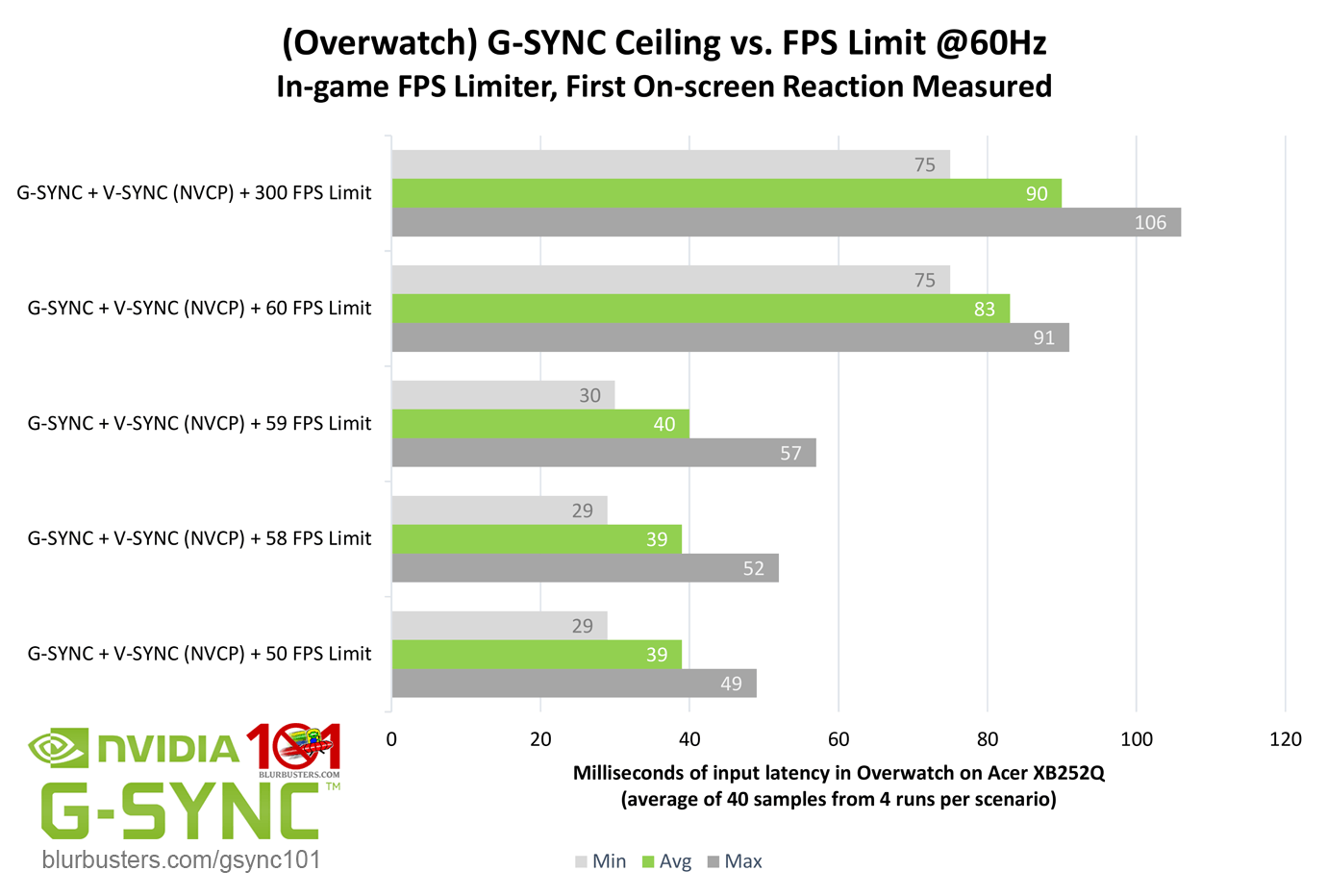
Putting just -2 below the frame rate has massive improvement in input lag
refer this
https://blurbusters.com/gsync/gsync101- ... ettings/5/
(I recommend going through all his testing if you are interested about g-sync, its slightly old but still accurate (to my knowledge))
Wolololo Das Ich Soll -
DecadeRiptide
- Posts: 2483
- Joined: Jul 17, '25
- Location: On holiday
- Gender: Dinosaur
-
Geolocation
Interesting. I'm too lazy to configure and test though and I'm already used to the input lag with VsyncnullSector wrote: ↑ September 27th, 2025, 19:27DecadeRiptide wrote: ↑ September 27th, 2025, 18:49I always assumed the -3 max frames was just bs. If that was needed then Nvidia would've made that happen automatically when you are using gsync.
Putting just -2 below the frame rate has massive improvement in input lag
refer this
https://blurbusters.com/gsync/gsync101- ... ettings/5/
(I recommend going through all his testing if you are interested about g-sync, its slightly old but still accurate (to my knowledge))

ˎˊ˗╰┈➤ [ruby][/ruby]
ँ़── .✦.𖥔 ݁ ˖ँ़── .✦.𖥔 ݁ ˖ँ़── ✡︎ ݁ ˖
logincrash wrote:I genuinely hope you die a painful death. The sooner you are killed, the better.
.𖥔 ݁ ˖ThulsaDoomer wrote:Please visit a scenic bridge and plummet into its pristine waters. In fact, I'm not requesting, just do it.
ँ़── .✦.𖥔 ݁ ˖ँ़── .✦.𖥔 ݁ ˖ँ़── ✡︎ ݁ ˖-
mercerxiv

- Posts: 591
- Joined: Mar 6, '25
- Location: Dixie
-
Geolocation
The reason it's a mess is because it's a feature meant to boost sales first and foremost, so they can put G-SYNC stickers on stuff and get partner deals. They never really bothered to release any kind of clear official guidance on how to use it or configure it, most of it is hearsay of various users online.
What I run is V-Sync off in games, V-Sync forced on in-driver on global. It seems to at least not be causing issues (that I can notice/think of) and I have not seen tearing in a long time.
What I run is V-Sync off in games, V-Sync forced on in-driver on global. It seems to at least not be causing issues (that I can notice/think of) and I have not seen tearing in a long time.
I like sugar, and I like tea.
-
Bhaalspawn Jr
- Posts: 668
- Joined: Jul 7, '25
-
Geolocation
Adventurer's Guild
I think it's working now. I had v-sync on 'Fast' in NVCP, when it should just be 'On'.
Thanks all.
Thanks all.
Duty. Country. Family.
-
Bhaalspawn Jr
- Posts: 668
- Joined: Jul 7, '25
-
Geolocation
Adventurer's Guild
Ugh, never mind. It's giving me micro stuttering that I never had before.
Back to the drawing board...
Back to the drawing board...
Duty. Country. Family.
-
nullSector
- Posts: 191
- Joined: May 30, '25
-
Geolocation
Adventurer's Guild
What game are you playing?Bhaalspawn Jr wrote: ↑ September 28th, 2025, 17:51Ugh, never mind. It's giving me micro stuttering that I never had before.
Back to the drawing board...
Just to check again did you use the g-sync indicator to make sure it didn't get deactivated?
Wolololo Das Ich Soll -
Bhaalspawn Jr
- Posts: 668
- Joined: Jul 7, '25
-
Geolocation
Adventurer's Guild
I'm testing a few:nullSector wrote: ↑ September 28th, 2025, 17:54What game are you playing?Bhaalspawn Jr wrote: ↑ September 28th, 2025, 17:51Ugh, never mind. It's giving me micro stuttering that I never had before.
Back to the drawing board...
Just to check again did you use the g-sync indicator to make sure it didn't get deactivated?
Like a Dragon: Pirate Yakuza
Space Marine 2
Baldur's Gate 3
Pirate Yakuza already has a slight micro stuttering problem on PC when new areas are being loaded, but with g-sync it cranks up, especially during cutscenes.
Space Marine 2 plays smooth, no stuttering whatsoever.
Baldur's Gate 3 stutters during dialogue and cutscenes.
Yeah g-sync is definitely enabled in full-screen mode. I think my problem is to do with the fps limiter. I'll try it in-game instead of the NVCP global settings.
Duty. Country. Family.
-
Bhaalspawn Jr
- Posts: 668
- Joined: Jul 7, '25
-
Geolocation
Adventurer's Guild
Update:
Tried BG3 with Vulkan and that solved the stuttering.
Seems to just depend on the game. Just gotta troubleshoot.
Tried BG3 with Vulkan and that solved the stuttering.
Seems to just depend on the game. Just gotta troubleshoot.
Duty. Country. Family.
-
DDC

- Posts: 339
- Joined: Feb 3, '24
-
Geolocation

Have you tried without v-sync on in the control panel? I typically have monitor at 144hz, vsync off in-game, and v-sync off or application-controlled in NVIDIA control panel. Then in-game the refresh rate is usually set to 120hz since that's the most commonly available, but I am not using a limiter apart from what is available in-game. I have very few issues this way and games are very snappy and smooth. There is the occasional game that just doesn't seem to work right and has unexpected chop or tearing, and usually flipping v-sync on in-game makes it run acceptably (hence leaving v-sync application-controlled).Bhaalspawn Jr wrote: ↑ September 27th, 2025, 18:22Thought I'd try setting this up again to reduce input lag while eliminating screen tearing (I have a compatible monitor), but it doesn't seem to make any difference.
From what I understand, this seems to be the correct way of setting it up:
Enable g-sync on your monitor and v-sync in NVCP.
Set your max frames to -3 below your refresh rate.
Turn off v-sync in-game.
The latency just feels the same after this though. But if I disable v-sync and g-sync completely, I do notice a quicker response time for input, but then I get screen tearing.
I mostly play single player games and usually just leave my NVCP setting to "Let the 3D application decide" and enable v-sync in-game.
Any advice?
Maybe your expectations of reducing input lag are too high. It really depends on what your refresh rate is an how fast you can actually run the game. If you are on a 120hz monitor, meaning your normal options for tear-free gaming would be 60 or 120 fps, and your computer can run the game at 95 fps, then being able to g-sync to 95 fps is actually a big improvement in the experience. But if you're already above 120fps anyways, picking up those extra frames to run at say, a g-synced 135 fps instead of a v-synced 120fps probably won't be something you can feel or see.
Solidus Snake Did Nothing Wrong
-
sheet

- Posts: 676
- Joined: Apr 4, '25
-
Geolocation
I've only ever had my drivers use these two settings for my GeForce 1070 Ti:
Vertical Sync: "Use 3D Application Setting"
G-SYNC: Enabled for WIndowed and full screen Mode
Then I set V-Sync to Off in every game. I think that's worked for me in 95% of games, but I haven't played anything released in the last few years. When it works properly, I don't think it needs a frame limiter, it just limits on its own. I thought the whole point of G-Sync was to make V-Sync obsolete, and so V-Sync should never actually be enabled.
Vertical Sync: "Use 3D Application Setting"
G-SYNC: Enabled for WIndowed and full screen Mode
Then I set V-Sync to Off in every game. I think that's worked for me in 95% of games, but I haven't played anything released in the last few years. When it works properly, I don't think it needs a frame limiter, it just limits on its own. I thought the whole point of G-Sync was to make V-Sync obsolete, and so V-Sync should never actually be enabled.
-
Bhaalspawn Jr
- Posts: 668
- Joined: Jul 7, '25
-
Geolocation
Adventurer's Guild
I did try v-sync off in the control panel, and on in-game. It felt the same. It's probably easier to just do as you say and enable v-sync in-game if you get tearing rather than launching the CP to make any changes. I have a 144hz monitor too (it's a TV actually. LG C3 OLED) but I usually only run games at 60 fps and 4k because I'm happy with that and my PC can get real hot. Last game I ran at a higher fps (117) was World of Warcraft (f*ck Blizzard and that game). I never used g-sync or v-sync and only got tearing on the top and bottom of the screen in that game.DDC wrote: ↑ October 3rd, 2025, 03:09Have you tried without v-sync on in the control panel? I typically have monitor at 144hz, vsync off in-game, and v-sync off or application-controlled in NVIDIA control panel. Then in-game the refresh rate is usually set to 120hz since that's the most commonly available, but I am not using a limiter apart from what is available in-game. I have very few issues this way and games are very snappy and smooth. There is the occasional game that just doesn't seem to work right and has unexpected chop or tearing, and usually flipping v-sync on in-game makes it run acceptably (hence leaving v-sync application-controlled).Bhaalspawn Jr wrote: ↑ September 27th, 2025, 18:22Thought I'd try setting this up again to reduce input lag while eliminating screen tearing (I have a compatible monitor), but it doesn't seem to make any difference.
From what I understand, this seems to be the correct way of setting it up:
Enable g-sync on your monitor and v-sync in NVCP.
Set your max frames to -3 below your refresh rate.
Turn off v-sync in-game.
The latency just feels the same after this though. But if I disable v-sync and g-sync completely, I do notice a quicker response time for input, but then I get screen tearing.
I mostly play single player games and usually just leave my NVCP setting to "Let the 3D application decide" and enable v-sync in-game.
Any advice?
Maybe your expectations of reducing input lag are too high. It really depends on what your refresh rate is an how fast you can actually run the game. If you are on a 120hz monitor, meaning your normal options for tear-free gaming would be 60 or 120 fps, and your computer can run the game at 95 fps, then being able to g-sync to 95 fps is actually a big improvement in the experience. But if you're already above 120fps anyways, picking up those extra frames to run at say, a g-synced 135 fps instead of a v-synced 120fps probably won't be something you can feel or see.
I'm running with g-sync right now at 57 fps. I'll try cranking it up to 95 and see what happens. (My PC can do it.)
Duty. Country. Family.
-
Bhaalspawn Jr
- Posts: 668
- Joined: Jul 7, '25
-
Geolocation
Adventurer's Guild
See, this is the common misconception that makes us all confused (hence the title of this thread). According to Blur Busters, you should enable v-sync with g-sync, but Nvidia themselves have (at least to my knowledge) never provided info or a guide on how to properly use it. Blur Busters' guide was written in 2017. I don't know if g-sync has evolved to work on its own since then. I'm actually going to try it now without v-sync, but I'm pretty sure you'll get tearing unless you bump up the fps.sheet wrote: ↑ October 3rd, 2025, 03:26I've only ever had my drivers use these two settings for my GeForce 1070 Ti:
Vertical Sync: "Use 3D Application Setting"
G-SYNC: Enabled for WIndowed and full screen Mode
Then I set V-Sync to Off in every game. I think that's worked for me in 95% of games, but I haven't played anything released in the last few years. When it works properly, I don't think it needs a frame limiter, it just limits on its own. I thought the whole point of G-Sync was to make V-Sync obsolete, and so V-Sync should never actually be enabled.
Duty. Country. Family.
-
rusty_shackleford
- Site Admin
- Posts: 46432
- Joined: Feb 2, '23
- Gender: Watermelon
-
Geolocation
Adventurer's Guild
correct
if it's working correctly, vsync won't lock you to any specific FPS
Thank you for your attention to this matter!
Steam friend code: 40552640 https://steamcommunity.com/friends/add | email: [email protected]
Having trouble running an old Windows game?
Rusty's Stuff Collection
Steam friend code: 40552640 https://steamcommunity.com/friends/add | email: [email protected]
Having trouble running an old Windows game?
Rusty's Stuff Collection
-
rusty_shackleford
- Site Admin
- Posts: 46432
- Joined: Feb 2, '23
- Gender: Watermelon
-
Geolocation
Adventurer's Guild
My 2 cents:
There's zero reason it would introduce any stutter from a technical standpoint, I'd suggest just undoing any changes you've done beyond enabling it.
There's zero reason it would introduce any stutter from a technical standpoint, I'd suggest just undoing any changes you've done beyond enabling it.
Thank you for your attention to this matter!
Steam friend code: 40552640 https://steamcommunity.com/friends/add | email: [email protected]
Having trouble running an old Windows game?
Rusty's Stuff Collection
Steam friend code: 40552640 https://steamcommunity.com/friends/add | email: [email protected]
Having trouble running an old Windows game?
Rusty's Stuff Collection
-
Bhaalspawn Jr
- Posts: 668
- Joined: Jul 7, '25
-
Geolocation
Adventurer's Guild
I'm beginning to think that might have been a shader cache problem on my end. I usually empty the cache every now and then, but I might just do the old DDU to give me peace of mind.rusty_shackleford wrote: ↑ October 3rd, 2025, 03:41My 2 cents:
There's zero reason it would introduce any stutter from a technical standpoint, I'd suggest just undoing any changes you've done beyond enabling it.
Duty. Country. Family.
-
sheet
- Posts: 676
- Joined: Apr 4, '25
-
Geolocation
I will say that neither of my current monitors are "G-Sync Compatible", they're just Freesync ones but my settings still work for these.
I did used to have a Dell G-Sync Certified one, and I think the settings were the same, but don't remember for sure.
I did used to have a Dell G-Sync Certified one, and I think the settings were the same, but don't remember for sure.
-
DDC
- Posts: 339
- Joined: Feb 3, '24
-
Geolocation
The tearing is usually a product of g-sync not working right with a specific game, or having a game framerate that is higher than your monitor refresh rate. I've always used vsync off in all places as a first resort and I'd say at least 90% of games have no issues. And when Vsync is flipped on for the remaining 10%, I think that at least some of the time, it may be overriding the g-sync and not using a variable refresh rate, which normally isn't going to impact me much because I have plenty of headroom running a 5090.Bhaalspawn Jr wrote: ↑ October 3rd, 2025, 03:36See, this is the common misconception that makes us all confused (hence the title of this thread). According to Blur Busters, you should enable v-sync with g-sync, but Nvidia themselves have (at least to my knowledge) never provided info or a guide on how to properly use it. Blur Busters' guide was written in 2017. I don't know if g-sync has evolved to work on its own since then. I'm actually going to try it now without v-sync, but I'm pretty sure you'll get tearing unless you bump up the fps.sheet wrote: ↑ October 3rd, 2025, 03:26I've only ever had my drivers use these two settings for my GeForce 1070 Ti:
Vertical Sync: "Use 3D Application Setting"
G-SYNC: Enabled for WIndowed and full screen Mode
Then I set V-Sync to Off in every game. I think that's worked for me in 95% of games, but I haven't played anything released in the last few years. When it works properly, I don't think it needs a frame limiter, it just limits on its own. I thought the whole point of G-Sync was to make V-Sync obsolete, and so V-Sync should never actually be enabled.
For an example of a game I had a hard time with, I think the last one was the Ninja Gaiden Black 2 remaster with ray-tracing on. I think at times it was running in the 60s but it felt like it was running in the 30s. I would have to toggle settings back and forth on a regular basis to keep it running smooth.
Solidus Snake Did Nothing Wrong
-
Bhaalspawn Jr
- Posts: 668
- Joined: Jul 7, '25
-
Geolocation
Adventurer's Guild
A 5090, huh? Sick. I've got a 4070 Ti Super.DDC wrote: ↑ October 3rd, 2025, 09:39The tearing is usually a product of g-sync not working right with a specific game, or having a game framerate that is higher than your monitor refresh rate. I've always used vsync off in all places as a first resort and I'd say at least 90% of games have no issues. And when Vsync is flipped on for the remaining 10%, I think that at least some of the time, it may be overriding the g-sync and not using a variable refresh rate, which normally isn't going to impact me much because I have plenty of headroom running a 5090.Bhaalspawn Jr wrote: ↑ October 3rd, 2025, 03:36See, this is the common misconception that makes us all confused (hence the title of this thread). According to Blur Busters, you should enable v-sync with g-sync, but Nvidia themselves have (at least to my knowledge) never provided info or a guide on how to properly use it. Blur Busters' guide was written in 2017. I don't know if g-sync has evolved to work on its own since then. I'm actually going to try it now without v-sync, but I'm pretty sure you'll get tearing unless you bump up the fps.sheet wrote: ↑ October 3rd, 2025, 03:26I've only ever had my drivers use these two settings for my GeForce 1070 Ti:
Vertical Sync: "Use 3D Application Setting"
G-SYNC: Enabled for WIndowed and full screen Mode
Then I set V-Sync to Off in every game. I think that's worked for me in 95% of games, but I haven't played anything released in the last few years. When it works properly, I don't think it needs a frame limiter, it just limits on its own. I thought the whole point of G-Sync was to make V-Sync obsolete, and so V-Sync should never actually be enabled.
For an example of a game I had a hard time with, I think the last one was the Ninja Gaiden Black 2 remaster with ray-tracing on. I think at times it was running in the 60s but it felt like it was running in the 30s. I would have to toggle settings back and forth on a regular basis to keep it running smooth.
Yeah, so I tried running BG3 at 95 fps with g-sync on and v-sync off. I think there is a little tearing at the very top and bottom of the screen, but it's not that noticeable. Need to try a more action-focused game next.
Duty. Country. Family.
-
DDC
- Posts: 339
- Joined: Feb 3, '24
-
Geolocation
If there's any tearing and the game isn't above the monitor's max refresh rate, that would indicate that the g-sync isn't working for whatever reason. There should be no tearing at all. A g-synced game should look just as clean as a v-synced game because a g-synced game is v-synced. It's just that instead of forcing the game to run at whatever the static refresh rate of the monitor is, the monitor's refresh rate is constantly changing to match the game's framerate. So you have these scenarios:
1. Gsync is working properly but game is running faster than monitor's max refresh rate, meaning it cannot keep up and the v-sync is lost, causing tearing
2. Gysnc is not working properly, monitor refresh rate is not changing to match game framerate, causing tearing
3. Gysnc is working properly, there is no tearing even at odd framerates like 95fps. Monitor refresh rate is changing to match game refresh rate
4. Vsync settings are overriding Gsync, causing the monitor to not have a variable refresh rate. There is no tearing, but you are losing FPS because the monitor is running at a static refresh rate. For example, the game will switch between 60fps and 120fps depending on whether it is running above or below 120fps. There is nothing in between. If it is running at 80fps, it gets locked down to 60. If it is running at 127 fps, it gets locked down to 120.
1. Gsync is working properly but game is running faster than monitor's max refresh rate, meaning it cannot keep up and the v-sync is lost, causing tearing
2. Gysnc is not working properly, monitor refresh rate is not changing to match game framerate, causing tearing
3. Gysnc is working properly, there is no tearing even at odd framerates like 95fps. Monitor refresh rate is changing to match game refresh rate
4. Vsync settings are overriding Gsync, causing the monitor to not have a variable refresh rate. There is no tearing, but you are losing FPS because the monitor is running at a static refresh rate. For example, the game will switch between 60fps and 120fps depending on whether it is running above or below 120fps. There is nothing in between. If it is running at 80fps, it gets locked down to 60. If it is running at 127 fps, it gets locked down to 120.
Solidus Snake Did Nothing Wrong
-
Bhaalspawn Jr
- Posts: 668
- Joined: Jul 7, '25
-
Geolocation
Adventurer's Guild
This was the way.DDC wrote: ↑ October 3rd, 2025, 03:09Have you tried without v-sync on in the control panel? I typically have monitor at 144hz, vsync off in-game, and v-sync off or application-controlled in NVIDIA control panel. Then in-game the refresh rate is usually set to 120hz since that's the most commonly available, but I am not using a limiter apart from what is available in-game. I have very few issues this way and games are very snappy and smooth. There is the occasional game that just doesn't seem to work right and has unexpected chop or tearing, and usually flipping v-sync on in-game makes it run acceptably (hence leaving v-sync application-controlled).Bhaalspawn Jr wrote: ↑ September 27th, 2025, 18:22Thought I'd try setting this up again to reduce input lag while eliminating screen tearing (I have a compatible monitor), but it doesn't seem to make any difference.
From what I understand, this seems to be the correct way of setting it up:
Enable g-sync on your monitor and v-sync in NVCP.
Set your max frames to -3 below your refresh rate.
Turn off v-sync in-game.
The latency just feels the same after this though. But if I disable v-sync and g-sync completely, I do notice a quicker response time for input, but then I get screen tearing.
I mostly play single player games and usually just leave my NVCP setting to "Let the 3D application decide" and enable v-sync in-game.
Any advice?
Maybe your expectations of reducing input lag are too high. It really depends on what your refresh rate is an how fast you can actually run the game. If you are on a 120hz monitor, meaning your normal options for tear-free gaming would be 60 or 120 fps, and your computer can run the game at 95 fps, then being able to g-sync to 95 fps is actually a big improvement in the experience. But if you're already above 120fps anyways, picking up those extra frames to run at say, a g-synced 135 fps instead of a v-synced 120fps probably won't be something you can feel or see.
I actually gave up on it again, but found out the other day that the real issue all along was that I had my refresh rate set to 60 in windows rather than it's max setting (120 in my case because I'm using HDMI). See, I mistakenly thought that the in-game frame limiter overrode the refresh rate of the monitor so I just set it to be the same and expected g-sync to work. Of course it didn't, it's VRR so it doesn't necessarily work like v-sync unless you have a higher refresh rate than the frame cap. Not only that, but online sources said that you should have the refresh rate of your monitor be the same as your frame cap. I picked up Space Marine 2 again and noticed the input lag immediately with v-sync, so I was playing with it off for a time and just dealing with the screen tearing. It was then that I just thought I'd give g-sync another go and there was still tearing. That's when it hit me to try it with the max refresh rate on my monitor and voila, the tearing's gone and the gameplay's responsive.
Duty. Country. Family.
-
anonusername

- Posts: 126
- Joined: Feb 17, '24
-
Geolocation
Personally I just turn off G-sync and V-sync and set the frame cap to 120 or 240 depending on whether the game is prone to stutter at very high frame rates. For whatever reason I don't get tearing unless the software is bugged. e.g. Running steam with Wayland will cause "tearing" because every frame includes random parts of previous frames, but it's more of a mosaic than a tear. There's some games that only update the middle 16:9 portion of the screen with certain graphical effects when run in 32:9 aspect ratio, etc.
-
Bhaalspawn Jr
- Posts: 668
- Joined: Jul 7, '25
-
Geolocation
Adventurer's Guild
Yeah, if you're running games at 120+fps then you probably won't need either sync (does depend on the game though). For me (who mostly plays single player games), I like playing in 4K and with 60fps. With my monitor's refresh rate set to 120, and g-sync enabled in fullscreen only mode in the NVCP with v-sync off everywhere else, I get zero tearing and no perceivable delay in inputs.anonusername wrote: ↑ May 19th, 2026, 00:33Personally I just turn off G-sync and V-sync and set the frame cap to 120 or 240 depending on whether the game is prone to stutter at very high frame rates. For whatever reason I don't get tearing unless the software is bugged. e.g. Running steam with Wayland will cause "tearing" because every frame includes random parts of previous frames, but it's more of a mosaic than a tear. There's some games that only update the middle 16:9 portion of the screen with certain graphical effects when run in 32:9 aspect ratio, etc.
Duty. Country. Family.