

Index
- OrinEsque's Data Mined Cheatsheets
- Prerequisites
- Find and Extract NPC's CharacterVisuals code.
- Swap Body Model & Animations
- Swap Head
- Swap Hair Model
- Add Horn, Tail, Fangs, Wings
- Swap Armor/Clothing
- Change Hair, Skin, Eye Color
- How to change Portraits
- Turning your Visual Changes into a Mod
Good to know: Larian's Shorthand for races
1.OrinEsque's Data Mined Cheatsheets
Hidden Content
This board requires you to be registered and logged-in to view hidden content.
[back to index]
2. Prerequisites
This guide assumes you know how to use BG3 Multimodders tool (BG3MT), unpacked your game data and know how to use the tool's search function. If not, read Getting Started with BG3 Modding.
[back to index]
3. Find and Extract NPC's CharacterVisuals file.
In this particular guide we will turn Lucretious into a bearded dwarf using code only.
- Open BGMT and Search Index for "Lucretious" (do not place any filters for file types).
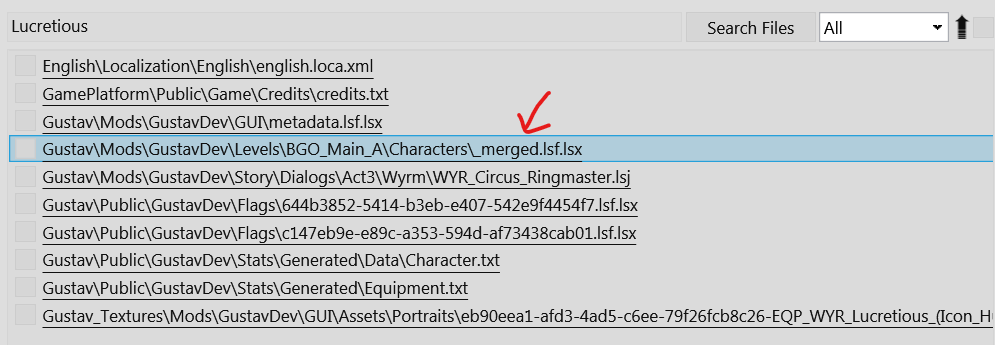
- Notice that unlike before, there is no [PAK]_CharacterVisuals\_merged.lsf.lsx in the results. This is because Lucretious is not called by real his name in code.
- Open the results where it says \Levels\***\Characters\_merged.lsx.lsf using notepad++
- Ctrl+F and search for "Lucretious". First hit will be "EQP_WYR_Lucretious".
- Copy the UUID of the CharacterVisualResourceID and search for it using BGMT Search Index. This time you will find the [PAK]_CharacterVisuals file.
- Open the [PAK]_CharacterVisuals/_merged.lsf.lsx file using notepad++
- Search for the UUID we copied before. This will take you to Lucretious' Visuals
- Copy to a new file everything starting from "<node id=Resource>" (line 651003) to the corresponding "</node>" (line 651448).
► Show Spoiler
Code: Select all
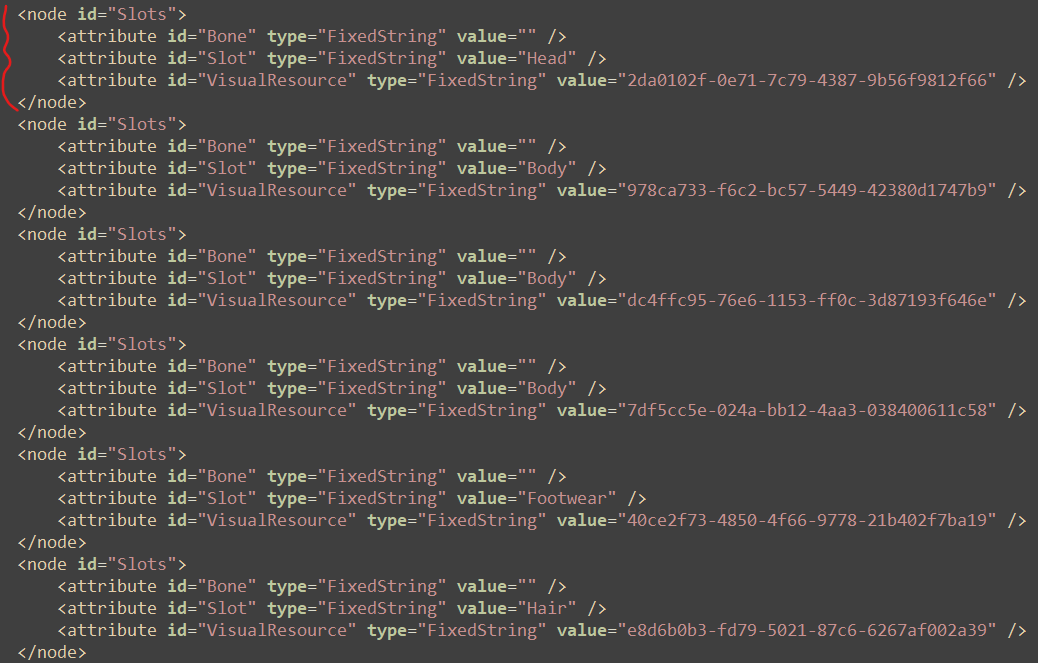
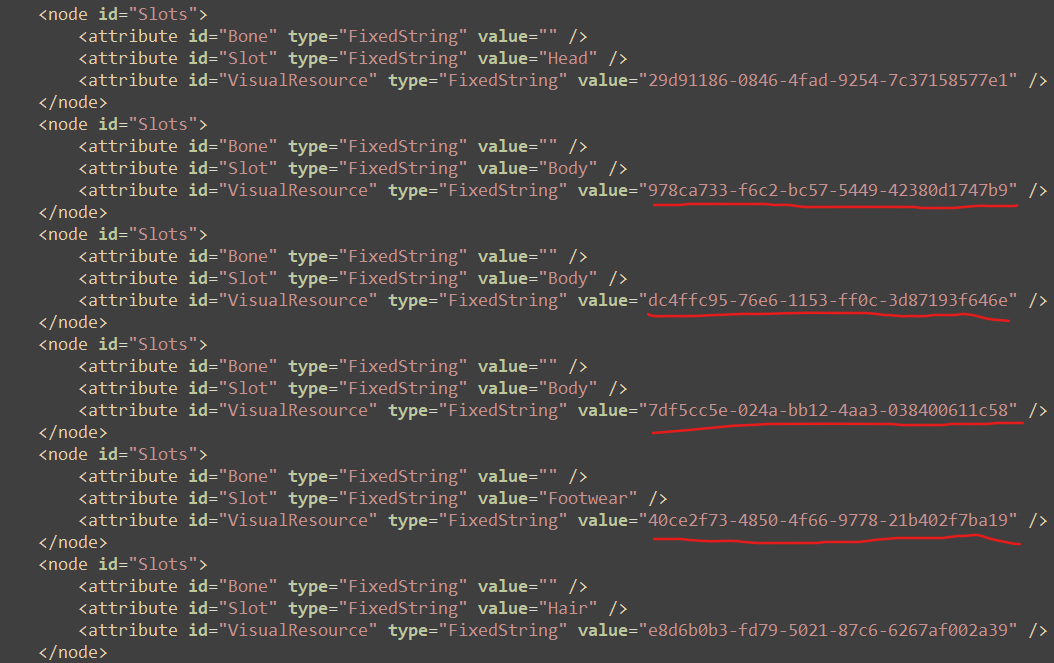
<node id="Resource"> <attribute id="BaseVisual" type="FixedString" value="c7c62a23-1ddc-6d56-7858-3bb5f3fe5a98" /> <attribute id="BodySetVisual" type="FixedString" value="9725b3db-6e40-054b-dc49-b8e479bc0cba" /> <attribute id="ID" type="FixedString" value="eb90eea1-afd3-4ad5-c6ee-79f26fcb8c26" /> <attribute id="Name" type="LSString" value="S_WYR_Circus_Ringmaster_c95af77b-6fc3-4c73-ac7c-087124f4b1e4" /> <attribute id="ShowEquipmentVisuals" type="bool" value="False" /> <attribute id="_OriginalFileVersion_" type="int64" value="144115207403209032" /> <children> <node id="MaterialOverrides"> <attribute id="MaterialResource" type="FixedString" value="" /> <children> <node id="MaterialPresets"> <children> <node id="Object"> <attribute id="ForcePresetValues" type="bool" value="True" /> <attribute id="GroupName" type="FixedString" value="02Skin Properties" /> <attribute id="MapKey" type="FixedString" value="02Skin Properties" /> <attribute id="MaterialPresetResource" type="FixedString" value="fd5a996e-8be0-fc77-8d06-df1eb7c48cf2" /> </node> <node id="Object"> <attribute id="ForcePresetValues" type="bool" value="True" /> <attribute id="GroupName" type="FixedString" value="03Hair" /> <attribute id="MapKey" type="FixedString" value="03Hair" /> <attribute id="MaterialPresetResource" type="FixedString" value="f9364368-53d2-6378-f585-e54b7de43858" /> </node> <node id="Object"> <attribute id="ForcePresetValues" type="bool" value="False" /> <attribute id="GroupName" type="FixedString" value="06Eyes" /> <attribute id="MapKey" type="FixedString" value="06Eyes" /> <attribute id="MaterialPresetResource" type="FixedString" value="e105373e-7402-7727-4697-001a4a6ca62a" /> </node> </children> </node> <node id="ScalarParameters"> <attribute id="Color" type="bool" value="False" /> <attribute id="Custom" type="bool" value="True" /> <attribute id="Enabled" type="bool" value="False" /> <attribute id="Parameter" type="FixedString" value="Reflectance" /> <attribute id="Value" type="float" value="0.6" /> </node> <node id="ScalarParameters"> <attribute id="Color" type="bool" value="False" /> <attribute id="Custom" type="bool" value="True" /> <attribute id="Enabled" type="bool" value="False" /> <attribute id="Parameter" type="FixedString" value="DreadNoiseNormal" /> <attribute id="Value" type="float" value="0" /> </node> <node id="ScalarParameters"> <attribute id="Color" type="bool" value="False" /> <attribute id="Custom" type="bool" value="True" /> <attribute id="Enabled" type="bool" value="False" /> <attribute id="Parameter" type="FixedString" value="Opacity" /> <attribute id="Value" type="float" value="2" /> </node> <node id="ScalarParameters"> <attribute id="Color" type="bool" value="False" /> <attribute id="Custom" type="bool" value="True" /> <attribute id="Enabled" type="bool" value="False" /> <attribute id="Parameter" type="FixedString" value="Scalp_Graying_Intensity" /> <attribute id="Value" type="float" value="0" /> </node> <node id="ScalarParameters"> <attribute id="Color" type="bool" value="False" /> <attribute id="Custom" type="bool" value="True" /> <attribute id="Enabled" type="bool" value="False" /> <attribute id="Parameter" type="FixedString" value="PixelDepthOffset" /> <attribute id="Value" type="float" value="0.006" /> </node> <node id="ScalarParameters"> <attribute id="Color" type="bool" value="False" /> <attribute id="Custom" type="bool" value="True" /> <attribute id="Enabled" type="bool" value="False" /> <attribute id="Parameter" type="FixedString" value="DepthTransitionMidPoint" /> <attribute id="Value" type="float" value="0.35" /> </node> <node id="ScalarParameters"> <attribute id="Color" type="bool" value="False" /> <attribute id="Custom" type="bool" value="True" /> <attribute id="Enabled" type="bool" value="False" /> <attribute id="Parameter" type="FixedString" value="DepthTransitionSoftness" /> <attribute id="Value" type="float" value="0.4" /> </node> <node id="ScalarParameters"> <attribute id="Color" type="bool" value="False" /> <attribute id="Custom" type="bool" value="True" /> <attribute id="Enabled" type="bool" value="False" /> <attribute id="Parameter" type="FixedString" value="Scalp_MinValue" /> <attribute id="Value" type="float" value="0.08" /> </node> <node id="ScalarParameters"> <attribute id="Color" type="bool" value="False" /> <attribute id="Custom" type="bool" value="True" /> <attribute id="Enabled" type="bool" value="False" /> <attribute id="Parameter" type="FixedString" value="Scalp_ColorTransitionMidPoint" /> <attribute id="Value" type="float" value="0.1" /> </node> <node id="ScalarParameters"> <attribute id="Color" type="bool" value="False" /> <attribute id="Custom" type="bool" value="True" /> <attribute id="Enabled" type="bool" value="False" /> <attribute id="Parameter" type="FixedString" value="Scalp_ColorTransitionSoftness" /> <attribute id="Value" type="float" value="0.2" /> </node> <node id="ScalarParameters"> <attribute id="Color" type="bool" value="False" /> <attribute id="Custom" type="bool" value="True" /> <attribute id="Enabled" type="bool" value="False" /> <attribute id="Parameter" type="FixedString" value="Scalp_DepthColorExponent" /> <attribute id="Value" type="float" value="1" /> </node> <node id="ScalarParameters"> <attribute id="Color" type="bool" value="False" /> <attribute id="Custom" type="bool" value="True" /> <attribute id="Enabled" type="bool" value="False" /> <attribute id="Parameter" type="FixedString" value="Scalp_DepthColorIntensity" /> <attribute id="Value" type="float" value="1" /> </node> <node id="ScalarParameters"> <attribute id="Color" type="bool" value="False" /> <attribute id="Custom" type="bool" value="True" /> <attribute id="Enabled" type="bool" value="False" /> <attribute id="Parameter" type="FixedString" value="Scalp_IDContrast" /> <attribute id="Value" type="float" value="1.7" /> </node> <node id="ScalarParameters"> <attribute id="Color" type="bool" value="False" /> <attribute id="Custom" type="bool" value="True" /> <attribute id="Enabled" type="bool" value="False" /> <attribute id="Parameter" type="FixedString" value="Scalp_ColorDepthContrast" /> <attribute id="Value" type="float" value="0.9" /> </node> <node id="ScalarParameters"> <attribute id="Color" type="bool" value="False" /> <attribute id="Custom" type="bool" value="True" /> <attribute id="Enabled" type="bool" value="False" /> <attribute id="Parameter" type="FixedString" value="Scalp_Roughness" /> <attribute id="Value" type="float" value="0.8" /> </node> <node id="ScalarParameters"> <attribute id="Color" type="bool" value="False" /> <attribute id="Custom" type="bool" value="True" /> <attribute id="Enabled" type="bool" value="False" /> <attribute id="Parameter" type="FixedString" value="Scalp_RoughnessContrast" /> <attribute id="Value" type="float" value="0.9" /> </node> <node id="ScalarParameters"> <attribute id="Color" type="bool" value="False" /> <attribute id="Custom" type="bool" value="True" /> <attribute id="Enabled" type="bool" value="False" /> <attribute id="Parameter" type="FixedString" value="Scalp_Scatter" /> <attribute id="Value" type="float" value="0.35" /> </node> <node id="ScalarParameters"> <attribute id="Color" type="bool" value="False" /> <attribute id="Custom" type="bool" value="True" /> <attribute id="Enabled" type="bool" value="False" /> <attribute id="Parameter" type="FixedString" value="Scalp_HornMaskWeight" /> <attribute id="Value" type="float" value="0" /> </node> <node id="ScalarParameters"> <attribute id="Color" type="bool" value="False" /> <attribute id="Custom" type="bool" value="True" /> <attribute id="Enabled" type="bool" value="False" /> <attribute id="Parameter" type="FixedString" value="Scatter" /> <attribute id="Value" type="float" value="0.05" /> </node> <node id="ScalarParameters"> <attribute id="Color" type="bool" value="False" /> <attribute id="Custom" type="bool" value="True" /> <attribute id="Enabled" type="bool" value="False" /> <attribute id="Parameter" type="FixedString" value="RoughnessContrast" /> <attribute id="Value" type="float" value="0.75" /> </node> <node id="ScalarParameters"> <attribute id="Color" type="bool" value="False" /> <attribute id="Custom" type="bool" value="True" /> <attribute id="Enabled" type="bool" value="False" /> <attribute id="Parameter" type="FixedString" value="DreadNoiseBaseColor" /> <attribute id="Value" type="float" value="0.02" /> </node> <node id="ScalarParameters"> <attribute id="Color" type="bool" value="False" /> <attribute id="Custom" type="bool" value="True" /> <attribute id="Enabled" type="bool" value="False" /> <attribute id="Parameter" type="FixedString" value="RootTransitionSoftness" /> <attribute id="Value" type="float" value="0.3" /> </node> <node id="ScalarParameters"> <attribute id="Color" type="bool" value="False" /> <attribute id="Custom" type="bool" value="True" /> <attribute id="Enabled" type="bool" value="False" /> <attribute id="Parameter" type="FixedString" value="RootTransitionMidPoint" /> <attribute id="Value" type="float" value="0.3" /> </node> <node id="ScalarParameters"> <attribute id="Color" type="bool" value="False" /> <attribute id="Custom" type="bool" value="True" /> <attribute id="Enabled" type="bool" value="True" /> <attribute id="Parameter" type="FixedString" value="LipsMakeupIntensity" /> <attribute id="Value" type="float" value="0.6" /> </node> <node id="ScalarParameters"> <attribute id="Color" type="bool" value="False" /> <attribute id="Custom" type="bool" value="True" /> <attribute id="Enabled" type="bool" value="True" /> <attribute id="Parameter" type="FixedString" value="MakeupRoughness" /> <attribute id="Value" type="float" value="1" /> </node> <node id="ScalarParameters"> <attribute id="Color" type="bool" value="False" /> <attribute id="Custom" type="bool" value="True" /> <attribute id="Enabled" type="bool" value="False" /> <attribute id="Parameter" type="FixedString" value="SharedNoiseTiling" /> <attribute id="Value" type="float" value="20" /> </node> <node id="ScalarParameters"> <attribute id="Color" type="bool" value="False" /> <attribute id="Custom" type="bool" value="True" /> <attribute id="Enabled" type="bool" value="False" /> <attribute id="Parameter" type="FixedString" value="MaxWindMovementAmount" /> <attribute id="Value" type="float" value="0.01" /> </node> <node id="ScalarParameters"> <attribute id="Color" type="bool" value="False" /> <attribute id="Custom" type="bool" value="True" /> <attribute id="Enabled" type="bool" value="False" /> <attribute id="Parameter" type="FixedString" value="Roughness" /> <attribute id="Value" type="float" value="0.5" /> </node> <node id="ScalarParameters"> <attribute id="Color" type="bool" value="False" /> <attribute id="Custom" type="bool" value="True" /> <attribute id="Enabled" type="bool" value="True" /> <attribute id="Parameter" type="FixedString" value="LipsMakeupRoughness" /> <attribute id="Value" type="float" value="0.66" /> </node> <node id="ScalarParameters"> <attribute id="Color" type="bool" value="False" /> <attribute id="Custom" type="bool" value="True" /> <attribute id="Enabled" type="bool" value="True" /> <attribute id="Parameter" type="FixedString" value="TattooIndex" /> <attribute id="Value" type="float" value="14" /> </node> <node id="ScalarParameters"> <attribute id="Color" type="bool" value="False" /> <attribute id="Custom" type="bool" value="True" /> <attribute id="Enabled" type="bool" value="True" /> <attribute id="Parameter" type="FixedString" value="TattooCurvatureInfluence" /> <attribute id="Value" type="float" value="0" /> </node> <node id="ScalarParameters"> <attribute id="Color" type="bool" value="False" /> <attribute id="Custom" type="bool" value="True" /> <attribute id="Enabled" type="bool" value="True" /> <attribute id="Parameter" type="FixedString" value="TattooMetalness" /> <attribute id="Value" type="float" value="2.3" /> </node> <node id="ScalarParameters"> <attribute id="Color" type="bool" value="False" /> <attribute id="Custom" type="bool" value="True" /> <attribute id="Enabled" type="bool" value="True" /> <attribute id="Parameter" type="FixedString" value="MakeupIntensity" /> <attribute id="Value" type="float" value="0.8" /> </node> <node id="ScalarParameters"> <attribute id="Color" type="bool" value="False" /> <attribute id="Custom" type="bool" value="True" /> <attribute id="Enabled" type="bool" value="True" /> <attribute id="Parameter" type="FixedString" value="EyesMakeupMetalness" /> <attribute id="Value" type="float" value="0" /> </node> <node id="ScalarParameters"> <attribute id="Color" type="bool" value="False" /> <attribute id="Custom" type="bool" value="True" /> <attribute id="Enabled" type="bool" value="True" /> <attribute id="Parameter" type="FixedString" value="Graying_Intensity" /> <attribute id="Value" type="float" value="0.1" /> </node> <node id="ScalarParameters"> <attribute id="Color" type="bool" value="False" /> <attribute id="Custom" type="bool" value="True" /> <attribute id="Enabled" type="bool" value="True" /> <attribute id="Parameter" type="FixedString" value="Graying_Seed" /> <attribute id="Value" type="float" value="0" /> </node> <node id="ScalarParameters"> <attribute id="Color" type="bool" value="False" /> <attribute id="Custom" type="bool" value="True" /> <attribute id="Enabled" type="bool" value="True" /> <attribute id="Parameter" type="FixedString" value="NonSkinMetalness" /> <attribute id="Value" type="float" value="0.7" /> </node> <node id="ScalarParameters"> <attribute id="Color" type="bool" value="False" /> <attribute id="Custom" type="bool" value="True" /> <attribute id="Enabled" type="bool" value="True" /> <attribute id="Parameter" type="FixedString" value="NonSkin_Weight" /> <attribute id="Value" type="float" value="0.8" /> </node> <node id="ScalarParameters"> <attribute id="Color" type="bool" value="False" /> <attribute id="Custom" type="bool" value="True" /> <attribute id="Enabled" type="bool" value="True" /> <attribute id="Parameter" type="FixedString" value="TattooRoughnessOffset" /> <attribute id="Value" type="float" value="-0.5" /> </node> <node id="Vector3Parameters"> <attribute id="Color" type="bool" value="False" /> <attribute id="Custom" type="bool" value="True" /> <attribute id="Enabled" type="bool" value="False" /> <attribute id="Parameter" type="FixedString" value="Hair_Scalp_Graying_Color" /> <attribute id="Value" type="fvec3" value="0.7316965 0.7316965 0.7316965" /> </node> <node id="Vector3Parameters"> <attribute id="Color" type="bool" value="False" /> <attribute id="Custom" type="bool" value="True" /> <attribute id="Enabled" type="bool" value="True" /> <attribute id="Parameter" type="FixedString" value="Lips_Makeup_Color" /> <attribute id="Value" type="fvec3" value="0.1001412 0.006140864 0.02786113" /> </node> <node id="Vector3Parameters"> <attribute id="Color" type="bool" value="False" /> <attribute id="Custom" type="bool" value="True" /> <attribute id="Enabled" type="bool" value="False" /> <attribute id="Parameter" type="FixedString" value="Leather_Secondary" /> <attribute id="Value" type="fvec3" value="0.3392233 0.1449721 0.0824142" /> </node> <node id="Vector3Parameters"> <attribute id="Color" type="bool" value="False" /> <attribute id="Custom" type="bool" value="True" /> <attribute id="Enabled" type="bool" value="False" /> <attribute id="Parameter" type="FixedString" value="AddedColor" /> <attribute id="Value" type="fvec3" value="0.02570003 0 0" /> </node> <node id="Vector3Parameters"> <attribute id="Color" type="bool" value="False" /> <attribute id="Custom" type="bool" value="True" /> <attribute id="Enabled" type="bool" value="True" /> <attribute id="Parameter" type="FixedString" value="MakeupColor" /> <attribute id="Value" type="fvec3" value="0.01246893 0.01246893 0.01246893" /> </node> <node id="Vector3Parameters"> <attribute id="Color" type="bool" value="False" /> <attribute id="Custom" type="bool" value="True" /> <attribute id="Enabled" type="bool" value="True" /> <attribute id="Parameter" type="FixedString" value="Eyes_IrisSecondaryColour" /> <attribute id="Value" type="fvec3" value="0.2560031 0.165672 0.2327135" /> </node> <node id="Vector3Parameters"> <attribute id="Color" type="bool" value="False" /> <attribute id="Custom" type="bool" value="True" /> <attribute id="Enabled" type="bool" value="True" /> <attribute id="Parameter" type="FixedString" value="Eyes_IrisColour" /> <attribute id="Value" type="fvec3" value="0.0514344 0.02231137 0.04937679" /> </node> <node id="Vector3Parameters"> <attribute id="Color" type="bool" value="False" /> <attribute id="Custom" type="bool" value="True" /> <attribute id="Enabled" type="bool" value="True" /> <attribute id="Parameter" type="FixedString" value="TattooColor" /> <attribute id="Value" type="fvec3" value="0.9378988 0.7664598 0.6236613" /> </node> <node id="Vector3Parameters"> <attribute id="Color" type="bool" value="False" /> <attribute id="Custom" type="bool" value="True" /> <attribute id="Enabled" type="bool" value="True" /> <attribute id="Parameter" type="FixedString" value="NonSkinColor" /> <attribute id="Value" type="fvec3" value="0 0.1756368 0.1695493" /> </node> <node id="Vector3Parameters"> <attribute id="Color" type="bool" value="False" /> <attribute id="Custom" type="bool" value="True" /> <attribute id="Enabled" type="bool" value="True" /> <attribute id="Parameter" type="FixedString" value="Highlight_Color" /> <attribute id="Value" type="fvec3" value="0.3531314 0.1078292 0.1888481" /> </node> <node id="Vector3Parameters"> <attribute id="Color" type="bool" value="False" /> <attribute id="Custom" type="bool" value="True" /> <attribute id="Enabled" type="bool" value="True" /> <attribute id="Parameter" type="FixedString" value="Hair_Graying_Color" /> <attribute id="Value" type="fvec3" value="0.006027527 0.04601355 0.0514344" /> </node> <node id="Vector3Parameters"> <attribute id="Color" type="bool" value="False" /> <attribute id="Custom" type="bool" value="True" /> <attribute id="Enabled" type="bool" value="False" /> <attribute id="Parameter" type="FixedString" value="TattooColorA" /> <attribute id="Value" type="fvec3" value="0.2331679 0.7710817 0.8331791" /> </node> <node id="Vector3Parameters"> <attribute id="Color" type="bool" value="False" /> <attribute id="Custom" type="bool" value="True" /> <attribute id="Enabled" type="bool" value="True" /> <attribute id="Parameter" type="FixedString" value="TattooColorB" /> <attribute id="Value" type="fvec3" value="0.8916273 0.5169303 0.2249473" /> </node> <node id="Vector3Parameters"> <attribute id="Color" type="bool" value="False" /> <attribute id="Custom" type="bool" value="True" /> <attribute id="Enabled" type="bool" value="True" /> <attribute id="Parameter" type="FixedString" value="TattooColorG" /> <attribute id="Value" type="fvec3" value="0.1496862 0.4386538 0.4330895" /> </node> <node id="VectorParameters"> <attribute id="Color" type="bool" value="False" /> <attribute id="Custom" type="bool" value="True" /> <attribute id="Enabled" type="bool" value="True" /> <attribute id="Parameter" type="FixedString" value="TattooIntensity" /> <attribute id="Value" type="fvec4" value="0.26 0.6 0.07 0" /> </node> </children> </node> <node id="RealMaterialOverrides" /> <node id="Slots"> <attribute id="Bone" type="FixedString" value="" /> <attribute id="Slot" type="FixedString" value="Head" /> <attribute id="VisualResource" type="FixedString" value="2da0102f-0e71-7c79-4387-9b56f9812f66" /> </node> <node id="Slots"> <attribute id="Bone" type="FixedString" value="" /> <attribute id="Slot" type="FixedString" value="Body" /> <attribute id="VisualResource" type="FixedString" value="978ca733-f6c2-bc57-5449-42380d1747b9" /> </node> <node id="Slots"> <attribute id="Bone" type="FixedString" value="" /> <attribute id="Slot" type="FixedString" value="Body" /> <attribute id="VisualResource" type="FixedString" value="dc4ffc95-76e6-1153-ff0c-3d87193f646e" /> </node> <node id="Slots"> <attribute id="Bone" type="FixedString" value="" /> <attribute id="Slot" type="FixedString" value="Body" /> <attribute id="VisualResource" type="FixedString" value="7df5cc5e-024a-bb12-4aa3-038400611c58" /> </node> <node id="Slots"> <attribute id="Bone" type="FixedString" value="" /> <attribute id="Slot" type="FixedString" value="Footwear" /> <attribute id="VisualResource" type="FixedString" value="40ce2f73-4850-4f66-9778-21b402f7ba19" /> </node> <node id="Slots"> <attribute id="Bone" type="FixedString" value="" /> <attribute id="Slot" type="FixedString" value="Hair" /> <attribute id="VisualResource" type="FixedString" value="e8d6b0b3-fd79-5021-87c6-6267af002a39" /> </node> </children> </node> - Go to the top of the merged.lsf.lsx file and grab the starting parent tags before the first <node id="Resource"> and add it to the line before <node id=Resource> in your new file.
- Go to the bottom of the merged.lsf.lsx file and grab the ending parent tags after the paired </node> of the last <node id="Resource"> (in this case the last 4 lines of the file).
► Show Spoiler
Code: Select all
<?xml version="1.0" encoding="utf-8"?> <save> <version major="4" minor="0" revision="9" build="0" lslib_meta="v1,bswap_guids" /> <region id="CharacterVisualBank"> <node id="CharacterVisualBank"> <children> <node id="Resource"> <attribute id="BaseVisual" type="FixedString" value="c7c62a23-1ddc-6d56-7858-3bb5f3fe5a98" /> <attribute id="BodySetVisual" type="FixedString" value="9725b3db-6e40-054b-dc49-b8e479bc0cba" /> <attribute id="ID" type="FixedString" value="eb90eea1-afd3-4ad5-c6ee-79f26fcb8c26" /> <attribute id="Name" type="LSString" value="S_WYR_Circus_Ringmaster_c95af77b-6fc3-4c73-ac7c-087124f4b1e4" /> <attribute id="ShowEquipmentVisuals" type="bool" value="False" /> <attribute id="_OriginalFileVersion_" type="int64" value="144115207403209032" /> <children> <node id="MaterialOverrides"> <attribute id="MaterialResource" type="FixedString" value="" /> <children> <node id="MaterialPresets"> <children> <node id="Object"> <attribute id="ForcePresetValues" type="bool" value="True" /> <attribute id="GroupName" type="FixedString" value="02Skin Properties" /> <attribute id="MapKey" type="FixedString" value="02Skin Properties" /> <attribute id="MaterialPresetResource" type="FixedString" value="fd5a996e-8be0-fc77-8d06-df1eb7c48cf2" /> </node> <node id="Object"> <attribute id="ForcePresetValues" type="bool" value="True" /> <attribute id="GroupName" type="FixedString" value="03Hair" /> <attribute id="MapKey" type="FixedString" value="03Hair" /> <attribute id="MaterialPresetResource" type="FixedString" value="f9364368-53d2-6378-f585-e54b7de43858" /> </node> <node id="Object"> <attribute id="ForcePresetValues" type="bool" value="False" /> <attribute id="GroupName" type="FixedString" value="06Eyes" /> <attribute id="MapKey" type="FixedString" value="06Eyes" /> <attribute id="MaterialPresetResource" type="FixedString" value="e105373e-7402-7727-4697-001a4a6ca62a" /> </node> </children> </node> <node id="ScalarParameters"> <attribute id="Color" type="bool" value="False" /> <attribute id="Custom" type="bool" value="True" /> <attribute id="Enabled" type="bool" value="False" /> <attribute id="Parameter" type="FixedString" value="Reflectance" /> <attribute id="Value" type="float" value="0.6" /> </node> <node id="ScalarParameters"> <attribute id="Color" type="bool" value="False" /> <attribute id="Custom" type="bool" value="True" /> <attribute id="Enabled" type="bool" value="False" /> <attribute id="Parameter" type="FixedString" value="DreadNoiseNormal" /> <attribute id="Value" type="float" value="0" /> </node> <node id="ScalarParameters"> <attribute id="Color" type="bool" value="False" /> <attribute id="Custom" type="bool" value="True" /> <attribute id="Enabled" type="bool" value="False" /> <attribute id="Parameter" type="FixedString" value="Opacity" /> <attribute id="Value" type="float" value="2" /> </node> <node id="ScalarParameters"> <attribute id="Color" type="bool" value="False" /> <attribute id="Custom" type="bool" value="True" /> <attribute id="Enabled" type="bool" value="False" /> <attribute id="Parameter" type="FixedString" value="Scalp_Graying_Intensity" /> <attribute id="Value" type="float" value="0" /> </node> <node id="ScalarParameters"> <attribute id="Color" type="bool" value="False" /> <attribute id="Custom" type="bool" value="True" /> <attribute id="Enabled" type="bool" value="False" /> <attribute id="Parameter" type="FixedString" value="PixelDepthOffset" /> <attribute id="Value" type="float" value="0.006" /> </node> <node id="ScalarParameters"> <attribute id="Color" type="bool" value="False" /> <attribute id="Custom" type="bool" value="True" /> <attribute id="Enabled" type="bool" value="False" /> <attribute id="Parameter" type="FixedString" value="DepthTransitionMidPoint" /> <attribute id="Value" type="float" value="0.35" /> </node> <node id="ScalarParameters"> <attribute id="Color" type="bool" value="False" /> <attribute id="Custom" type="bool" value="True" /> <attribute id="Enabled" type="bool" value="False" /> <attribute id="Parameter" type="FixedString" value="DepthTransitionSoftness" /> <attribute id="Value" type="float" value="0.4" /> </node> <node id="ScalarParameters"> <attribute id="Color" type="bool" value="False" /> <attribute id="Custom" type="bool" value="True" /> <attribute id="Enabled" type="bool" value="False" /> <attribute id="Parameter" type="FixedString" value="Scalp_MinValue" /> <attribute id="Value" type="float" value="0.08" /> </node> <node id="ScalarParameters"> <attribute id="Color" type="bool" value="False" /> <attribute id="Custom" type="bool" value="True" /> <attribute id="Enabled" type="bool" value="False" /> <attribute id="Parameter" type="FixedString" value="Scalp_ColorTransitionMidPoint" /> <attribute id="Value" type="float" value="0.1" /> </node> <node id="ScalarParameters"> <attribute id="Color" type="bool" value="False" /> <attribute id="Custom" type="bool" value="True" /> <attribute id="Enabled" type="bool" value="False" /> <attribute id="Parameter" type="FixedString" value="Scalp_ColorTransitionSoftness" /> <attribute id="Value" type="float" value="0.2" /> </node> <node id="ScalarParameters"> <attribute id="Color" type="bool" value="False" /> <attribute id="Custom" type="bool" value="True" /> <attribute id="Enabled" type="bool" value="False" /> <attribute id="Parameter" type="FixedString" value="Scalp_DepthColorExponent" /> <attribute id="Value" type="float" value="1" /> </node> <node id="ScalarParameters"> <attribute id="Color" type="bool" value="False" /> <attribute id="Custom" type="bool" value="True" /> <attribute id="Enabled" type="bool" value="False" /> <attribute id="Parameter" type="FixedString" value="Scalp_DepthColorIntensity" /> <attribute id="Value" type="float" value="1" /> </node> <node id="ScalarParameters"> <attribute id="Color" type="bool" value="False" /> <attribute id="Custom" type="bool" value="True" /> <attribute id="Enabled" type="bool" value="False" /> <attribute id="Parameter" type="FixedString" value="Scalp_IDContrast" /> <attribute id="Value" type="float" value="1.7" /> </node> <node id="ScalarParameters"> <attribute id="Color" type="bool" value="False" /> <attribute id="Custom" type="bool" value="True" /> <attribute id="Enabled" type="bool" value="False" /> <attribute id="Parameter" type="FixedString" value="Scalp_ColorDepthContrast" /> <attribute id="Value" type="float" value="0.9" /> </node> <node id="ScalarParameters"> <attribute id="Color" type="bool" value="False" /> <attribute id="Custom" type="bool" value="True" /> <attribute id="Enabled" type="bool" value="False" /> <attribute id="Parameter" type="FixedString" value="Scalp_Roughness" /> <attribute id="Value" type="float" value="0.8" /> </node> <node id="ScalarParameters"> <attribute id="Color" type="bool" value="False" /> <attribute id="Custom" type="bool" value="True" /> <attribute id="Enabled" type="bool" value="False" /> <attribute id="Parameter" type="FixedString" value="Scalp_RoughnessContrast" /> <attribute id="Value" type="float" value="0.9" /> </node> <node id="ScalarParameters"> <attribute id="Color" type="bool" value="False" /> <attribute id="Custom" type="bool" value="True" /> <attribute id="Enabled" type="bool" value="False" /> <attribute id="Parameter" type="FixedString" value="Scalp_Scatter" /> <attribute id="Value" type="float" value="0.35" /> </node> <node id="ScalarParameters"> <attribute id="Color" type="bool" value="False" /> <attribute id="Custom" type="bool" value="True" /> <attribute id="Enabled" type="bool" value="False" /> <attribute id="Parameter" type="FixedString" value="Scalp_HornMaskWeight" /> <attribute id="Value" type="float" value="0" /> </node> <node id="ScalarParameters"> <attribute id="Color" type="bool" value="False" /> <attribute id="Custom" type="bool" value="True" /> <attribute id="Enabled" type="bool" value="False" /> <attribute id="Parameter" type="FixedString" value="Scatter" /> <attribute id="Value" type="float" value="0.05" /> </node> <node id="ScalarParameters"> <attribute id="Color" type="bool" value="False" /> <attribute id="Custom" type="bool" value="True" /> <attribute id="Enabled" type="bool" value="False" /> <attribute id="Parameter" type="FixedString" value="RoughnessContrast" /> <attribute id="Value" type="float" value="0.75" /> </node> <node id="ScalarParameters"> <attribute id="Color" type="bool" value="False" /> <attribute id="Custom" type="bool" value="True" /> <attribute id="Enabled" type="bool" value="False" /> <attribute id="Parameter" type="FixedString" value="DreadNoiseBaseColor" /> <attribute id="Value" type="float" value="0.02" /> </node> <node id="ScalarParameters"> <attribute id="Color" type="bool" value="False" /> <attribute id="Custom" type="bool" value="True" /> <attribute id="Enabled" type="bool" value="False" /> <attribute id="Parameter" type="FixedString" value="RootTransitionSoftness" /> <attribute id="Value" type="float" value="0.3" /> </node> <node id="ScalarParameters"> <attribute id="Color" type="bool" value="False" /> <attribute id="Custom" type="bool" value="True" /> <attribute id="Enabled" type="bool" value="False" /> <attribute id="Parameter" type="FixedString" value="RootTransitionMidPoint" /> <attribute id="Value" type="float" value="0.3" /> </node> <node id="ScalarParameters"> <attribute id="Color" type="bool" value="False" /> <attribute id="Custom" type="bool" value="True" /> <attribute id="Enabled" type="bool" value="True" /> <attribute id="Parameter" type="FixedString" value="LipsMakeupIntensity" /> <attribute id="Value" type="float" value="0.6" /> </node> <node id="ScalarParameters"> <attribute id="Color" type="bool" value="False" /> <attribute id="Custom" type="bool" value="True" /> <attribute id="Enabled" type="bool" value="True" /> <attribute id="Parameter" type="FixedString" value="MakeupRoughness" /> <attribute id="Value" type="float" value="1" /> </node> <node id="ScalarParameters"> <attribute id="Color" type="bool" value="False" /> <attribute id="Custom" type="bool" value="True" /> <attribute id="Enabled" type="bool" value="False" /> <attribute id="Parameter" type="FixedString" value="SharedNoiseTiling" /> <attribute id="Value" type="float" value="20" /> </node> <node id="ScalarParameters"> <attribute id="Color" type="bool" value="False" /> <attribute id="Custom" type="bool" value="True" /> <attribute id="Enabled" type="bool" value="False" /> <attribute id="Parameter" type="FixedString" value="MaxWindMovementAmount" /> <attribute id="Value" type="float" value="0.01" /> </node> <node id="ScalarParameters"> <attribute id="Color" type="bool" value="False" /> <attribute id="Custom" type="bool" value="True" /> <attribute id="Enabled" type="bool" value="False" /> <attribute id="Parameter" type="FixedString" value="Roughness" /> <attribute id="Value" type="float" value="0.5" /> </node> <node id="ScalarParameters"> <attribute id="Color" type="bool" value="False" /> <attribute id="Custom" type="bool" value="True" /> <attribute id="Enabled" type="bool" value="True" /> <attribute id="Parameter" type="FixedString" value="LipsMakeupRoughness" /> <attribute id="Value" type="float" value="0.66" /> </node> <node id="ScalarParameters"> <attribute id="Color" type="bool" value="False" /> <attribute id="Custom" type="bool" value="True" /> <attribute id="Enabled" type="bool" value="True" /> <attribute id="Parameter" type="FixedString" value="TattooIndex" /> <attribute id="Value" type="float" value="14" /> </node> <node id="ScalarParameters"> <attribute id="Color" type="bool" value="False" /> <attribute id="Custom" type="bool" value="True" /> <attribute id="Enabled" type="bool" value="True" /> <attribute id="Parameter" type="FixedString" value="TattooCurvatureInfluence" /> <attribute id="Value" type="float" value="0" /> </node> <node id="ScalarParameters"> <attribute id="Color" type="bool" value="False" /> <attribute id="Custom" type="bool" value="True" /> <attribute id="Enabled" type="bool" value="True" /> <attribute id="Parameter" type="FixedString" value="TattooMetalness" /> <attribute id="Value" type="float" value="2.3" /> </node> <node id="ScalarParameters"> <attribute id="Color" type="bool" value="False" /> <attribute id="Custom" type="bool" value="True" /> <attribute id="Enabled" type="bool" value="True" /> <attribute id="Parameter" type="FixedString" value="MakeupIntensity" /> <attribute id="Value" type="float" value="0.8" /> </node> <node id="ScalarParameters"> <attribute id="Color" type="bool" value="False" /> <attribute id="Custom" type="bool" value="True" /> <attribute id="Enabled" type="bool" value="True" /> <attribute id="Parameter" type="FixedString" value="EyesMakeupMetalness" /> <attribute id="Value" type="float" value="0" /> </node> <node id="ScalarParameters"> <attribute id="Color" type="bool" value="False" /> <attribute id="Custom" type="bool" value="True" /> <attribute id="Enabled" type="bool" value="True" /> <attribute id="Parameter" type="FixedString" value="Graying_Intensity" /> <attribute id="Value" type="float" value="0.1" /> </node> <node id="ScalarParameters"> <attribute id="Color" type="bool" value="False" /> <attribute id="Custom" type="bool" value="True" /> <attribute id="Enabled" type="bool" value="True" /> <attribute id="Parameter" type="FixedString" value="Graying_Seed" /> <attribute id="Value" type="float" value="0" /> </node> <node id="ScalarParameters"> <attribute id="Color" type="bool" value="False" /> <attribute id="Custom" type="bool" value="True" /> <attribute id="Enabled" type="bool" value="True" /> <attribute id="Parameter" type="FixedString" value="NonSkinMetalness" /> <attribute id="Value" type="float" value="0.7" /> </node> <node id="ScalarParameters"> <attribute id="Color" type="bool" value="False" /> <attribute id="Custom" type="bool" value="True" /> <attribute id="Enabled" type="bool" value="True" /> <attribute id="Parameter" type="FixedString" value="NonSkin_Weight" /> <attribute id="Value" type="float" value="0.8" /> </node> <node id="ScalarParameters"> <attribute id="Color" type="bool" value="False" /> <attribute id="Custom" type="bool" value="True" /> <attribute id="Enabled" type="bool" value="True" /> <attribute id="Parameter" type="FixedString" value="TattooRoughnessOffset" /> <attribute id="Value" type="float" value="-0.5" /> </node> <node id="Vector3Parameters"> <attribute id="Color" type="bool" value="False" /> <attribute id="Custom" type="bool" value="True" /> <attribute id="Enabled" type="bool" value="False" /> <attribute id="Parameter" type="FixedString" value="Hair_Scalp_Graying_Color" /> <attribute id="Value" type="fvec3" value="0.7316965 0.7316965 0.7316965" /> </node> <node id="Vector3Parameters"> <attribute id="Color" type="bool" value="False" /> <attribute id="Custom" type="bool" value="True" /> <attribute id="Enabled" type="bool" value="True" /> <attribute id="Parameter" type="FixedString" value="Lips_Makeup_Color" /> <attribute id="Value" type="fvec3" value="0.1001412 0.006140864 0.02786113" /> </node> <node id="Vector3Parameters"> <attribute id="Color" type="bool" value="False" /> <attribute id="Custom" type="bool" value="True" /> <attribute id="Enabled" type="bool" value="False" /> <attribute id="Parameter" type="FixedString" value="Leather_Secondary" /> <attribute id="Value" type="fvec3" value="0.3392233 0.1449721 0.0824142" /> </node> <node id="Vector3Parameters"> <attribute id="Color" type="bool" value="False" /> <attribute id="Custom" type="bool" value="True" /> <attribute id="Enabled" type="bool" value="False" /> <attribute id="Parameter" type="FixedString" value="AddedColor" /> <attribute id="Value" type="fvec3" value="0.02570003 0 0" /> </node> <node id="Vector3Parameters"> <attribute id="Color" type="bool" value="False" /> <attribute id="Custom" type="bool" value="True" /> <attribute id="Enabled" type="bool" value="True" /> <attribute id="Parameter" type="FixedString" value="MakeupColor" /> <attribute id="Value" type="fvec3" value="0.01246893 0.01246893 0.01246893" /> </node> <node id="Vector3Parameters"> <attribute id="Color" type="bool" value="False" /> <attribute id="Custom" type="bool" value="True" /> <attribute id="Enabled" type="bool" value="True" /> <attribute id="Parameter" type="FixedString" value="Eyes_IrisSecondaryColour" /> <attribute id="Value" type="fvec3" value="0.2560031 0.165672 0.2327135" /> </node> <node id="Vector3Parameters"> <attribute id="Color" type="bool" value="False" /> <attribute id="Custom" type="bool" value="True" /> <attribute id="Enabled" type="bool" value="True" /> <attribute id="Parameter" type="FixedString" value="Eyes_IrisColour" /> <attribute id="Value" type="fvec3" value="0.0514344 0.02231137 0.04937679" /> </node> <node id="Vector3Parameters"> <attribute id="Color" type="bool" value="False" /> <attribute id="Custom" type="bool" value="True" /> <attribute id="Enabled" type="bool" value="True" /> <attribute id="Parameter" type="FixedString" value="TattooColor" /> <attribute id="Value" type="fvec3" value="0.9378988 0.7664598 0.6236613" /> </node> <node id="Vector3Parameters"> <attribute id="Color" type="bool" value="False" /> <attribute id="Custom" type="bool" value="True" /> <attribute id="Enabled" type="bool" value="True" /> <attribute id="Parameter" type="FixedString" value="NonSkinColor" /> <attribute id="Value" type="fvec3" value="0 0.1756368 0.1695493" /> </node> <node id="Vector3Parameters"> <attribute id="Color" type="bool" value="False" /> <attribute id="Custom" type="bool" value="True" /> <attribute id="Enabled" type="bool" value="True" /> <attribute id="Parameter" type="FixedString" value="Highlight_Color" /> <attribute id="Value" type="fvec3" value="0.3531314 0.1078292 0.1888481" /> </node> <node id="Vector3Parameters"> <attribute id="Color" type="bool" value="False" /> <attribute id="Custom" type="bool" value="True" /> <attribute id="Enabled" type="bool" value="True" /> <attribute id="Parameter" type="FixedString" value="Hair_Graying_Color" /> <attribute id="Value" type="fvec3" value="0.006027527 0.04601355 0.0514344" /> </node> <node id="Vector3Parameters"> <attribute id="Color" type="bool" value="False" /> <attribute id="Custom" type="bool" value="True" /> <attribute id="Enabled" type="bool" value="False" /> <attribute id="Parameter" type="FixedString" value="TattooColorA" /> <attribute id="Value" type="fvec3" value="0.2331679 0.7710817 0.8331791" /> </node> <node id="Vector3Parameters"> <attribute id="Color" type="bool" value="False" /> <attribute id="Custom" type="bool" value="True" /> <attribute id="Enabled" type="bool" value="True" /> <attribute id="Parameter" type="FixedString" value="TattooColorB" /> <attribute id="Value" type="fvec3" value="0.8916273 0.5169303 0.2249473" /> </node> <node id="Vector3Parameters"> <attribute id="Color" type="bool" value="False" /> <attribute id="Custom" type="bool" value="True" /> <attribute id="Enabled" type="bool" value="True" /> <attribute id="Parameter" type="FixedString" value="TattooColorG" /> <attribute id="Value" type="fvec3" value="0.1496862 0.4386538 0.4330895" /> </node> <node id="VectorParameters"> <attribute id="Color" type="bool" value="False" /> <attribute id="Custom" type="bool" value="True" /> <attribute id="Enabled" type="bool" value="True" /> <attribute id="Parameter" type="FixedString" value="TattooIntensity" /> <attribute id="Value" type="fvec4" value="0.26 0.6 0.07 0" /> </node> </children> </node> <node id="RealMaterialOverrides" /> <node id="Slots"> <attribute id="Bone" type="FixedString" value="" /> <attribute id="Slot" type="FixedString" value="Head" /> <attribute id="VisualResource" type="FixedString" value="2da0102f-0e71-7c79-4387-9b56f9812f66" /> </node> <node id="Slots"> <attribute id="Bone" type="FixedString" value="" /> <attribute id="Slot" type="FixedString" value="Body" /> <attribute id="VisualResource" type="FixedString" value="978ca733-f6c2-bc57-5449-42380d1747b9" /> </node> <node id="Slots"> <attribute id="Bone" type="FixedString" value="" /> <attribute id="Slot" type="FixedString" value="Body" /> <attribute id="VisualResource" type="FixedString" value="dc4ffc95-76e6-1153-ff0c-3d87193f646e" /> </node> <node id="Slots"> <attribute id="Bone" type="FixedString" value="" /> <attribute id="Slot" type="FixedString" value="Body" /> <attribute id="VisualResource" type="FixedString" value="7df5cc5e-024a-bb12-4aa3-038400611c58" /> </node> <node id="Slots"> <attribute id="Bone" type="FixedString" value="" /> <attribute id="Slot" type="FixedString" value="Footwear" /> <attribute id="VisualResource" type="FixedString" value="40ce2f73-4850-4f66-9778-21b402f7ba19" /> </node> <node id="Slots"> <attribute id="Bone" type="FixedString" value="" /> <attribute id="Slot" type="FixedString" value="Hair" /> <attribute id="VisualResource" type="FixedString" value="e8d6b0b3-fd79-5021-87c6-6267af002a39" /> </node> </children> </node> </children> </node> </region> </save> - Save this somewhere as a .lsf.lsx file with a name of your choice. E.g.. lucretious.lsf.lsx. I'll describe where this goes later.
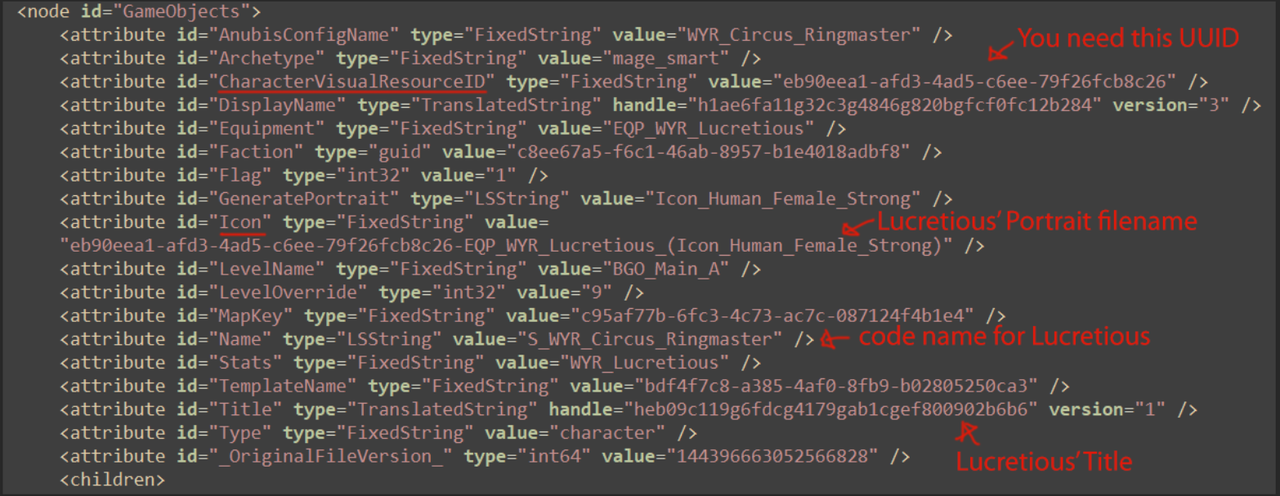
Faster Way to Find Characters
- Download the NPC_Lookup Table from the downloads above (need to be logged in)
- Open the spreadsheet in Microsoft Excel
- Hit Ctrl+F and search for "Lucretious". It will take you to the following row immediately.
- Copy the CharacterVisualResourceID and paste it in BG3MT search Index and it will show give you the required CharacterVisuals file among the results on first try.